VLC VideoLAN Player: Overview, Alternatives
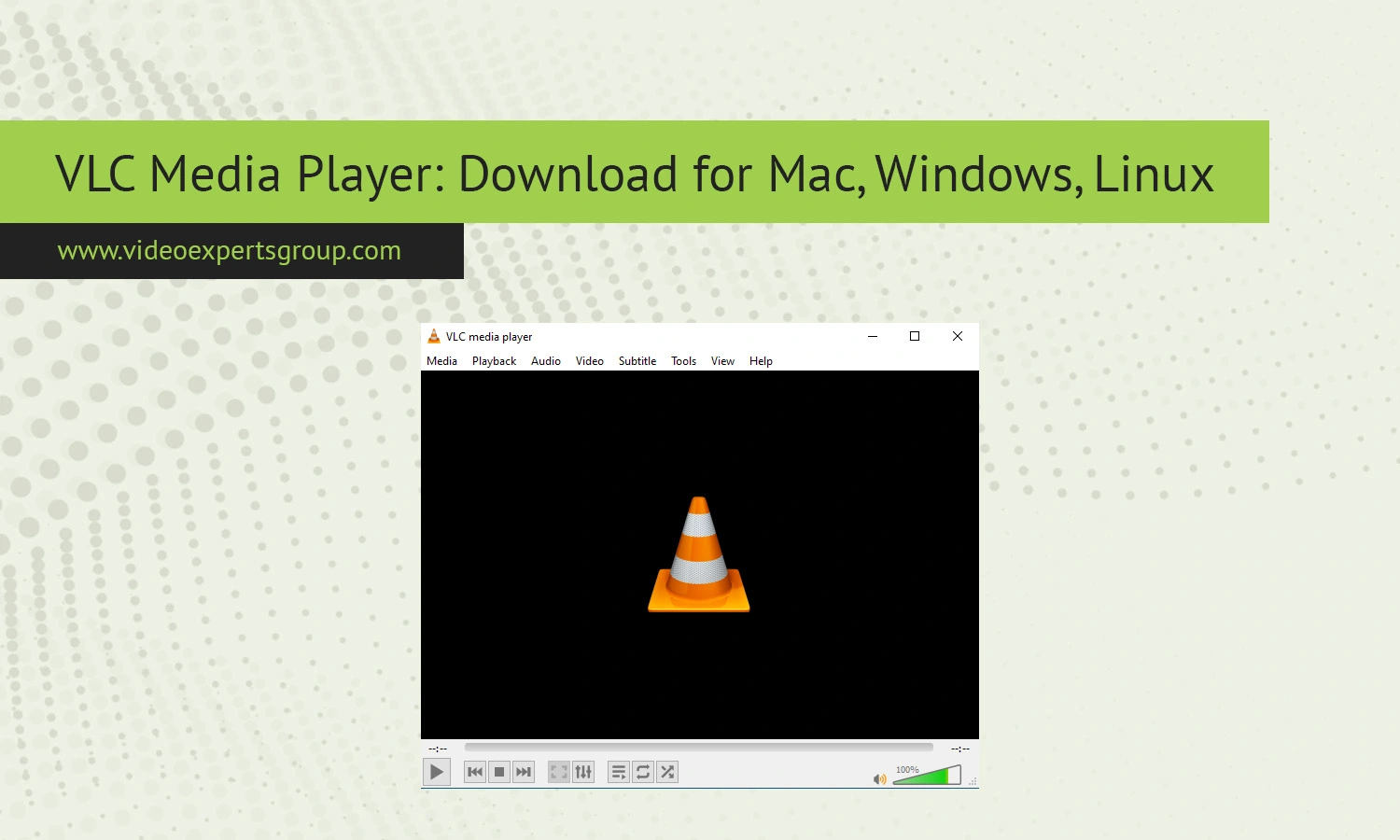
As one of the most trusted and reliable video media players in the world, VLC VideoLAN Player supports nearly all video and audio file types without needing any additional codecs and runs equally on Mac, Windows, and Linux operating systems. This guide takes a detailed look at what VLC Viewer is, its core features, the best modern alternatives for media playback, and how to troubleshoot common errors you might encounter.
About VLC Media Player
VLC Media Player is a free, open-source media player made by the non-profit organization VideoLAN. The player, originally released in 2001, has a reputation for being reliable, private, and supportive of almost any type of format imaginable. This means it can play everything from MP4 and MKV to DVDs, along with network stream formats, webcams, and more than a dozen subtitle languages.
Additionally, most media players require extra codec downloads, but since VLC comes with all required ones, users will rarely find their playback being interrupted.
Users can take advantage of features like fine-tuned video controls, filters for video, and a plethora of settings for audio equalization. Furthermore, the player supports screenshooting, streaming, and more. Being an open-source project ensures it is updated by a dedicated community and free from ad support or trackers.
Troubleshooting
Despite VLC's high stability, users may occasionally encounter technical issues such as video lagging, audio desynchronization, or network stream connection errors. To resolve these, updating the software to the latest version, resetting preferences to default values, or toggling hardware-accelerated decoding in the settings usually helps. If the player fails to open a specific RTSP stream, double-check your firewall configurations and ensure the source URL is correct.
VLC VideoLAN Player Alternatives
While still a go-to for many IP camera streams and general media viewing, VLC media player is hardly the easiest solution for dedicated camera viewing and may not possess features that are a necessity for serious security or broadcasting viewing. Fortunately, you can get all the features of VLC with far more specialized applications that are designed for more focused camera viewing.
VXG Player
VXG Player is another strong and modern alternative for demanding video streams. It has RTSP support in addition to other popular streaming technologies including HLS and WebRTC. The technology is developed to ensure the lowest latency possible and the ability to create very robust streaming sessions over any device.
VXG Player can run in a browser and also on desktop and mobile devices, which makes it extremely handy for those that don’t wish to use any heavy software applications to watch the streams.
It can also integrate into your cloud video infrastructures to support professional applications and surveillance.
PotPlayer
PotPlayer (Kakao): If you’re seeking another one of the most complete players available that’s equipped with advanced playback controls and wide support for codecs, you need to take a look at PotPlayer (Kakao), a player that gives users total customization options for playback. It is also an excellent option for dealing with high-definition (HD) streams, and is an ideal replacement for VLC if you’re looking for an alternative with greater personalization.
KMPlayer
Pandora TV's KMPlayer comes to mind readily for its simplicity and good support for many different formats of video. It's network-aware and handy if you're looking to simply get basic access to IP cameras, although it is not really specialized for surveillance per se.
GOM Player
This simple, efficient, no-nonsense free video player is from GOM & Company, and it supports various file formats as well as streaming of media files. This free movie player will be preferred by beginners who need to get to play all files with ease.
SMPlayer
SMPlayer uses the MPlayer engine like GNOME Player. It also comes with built-in codec support and has a very user-friendly and configurable interface, so you might want to consider SMPlayer if you lean toward open-source applications that aren’t too simplistic.
FAQs
