Amcrest Camera: Default Credentials
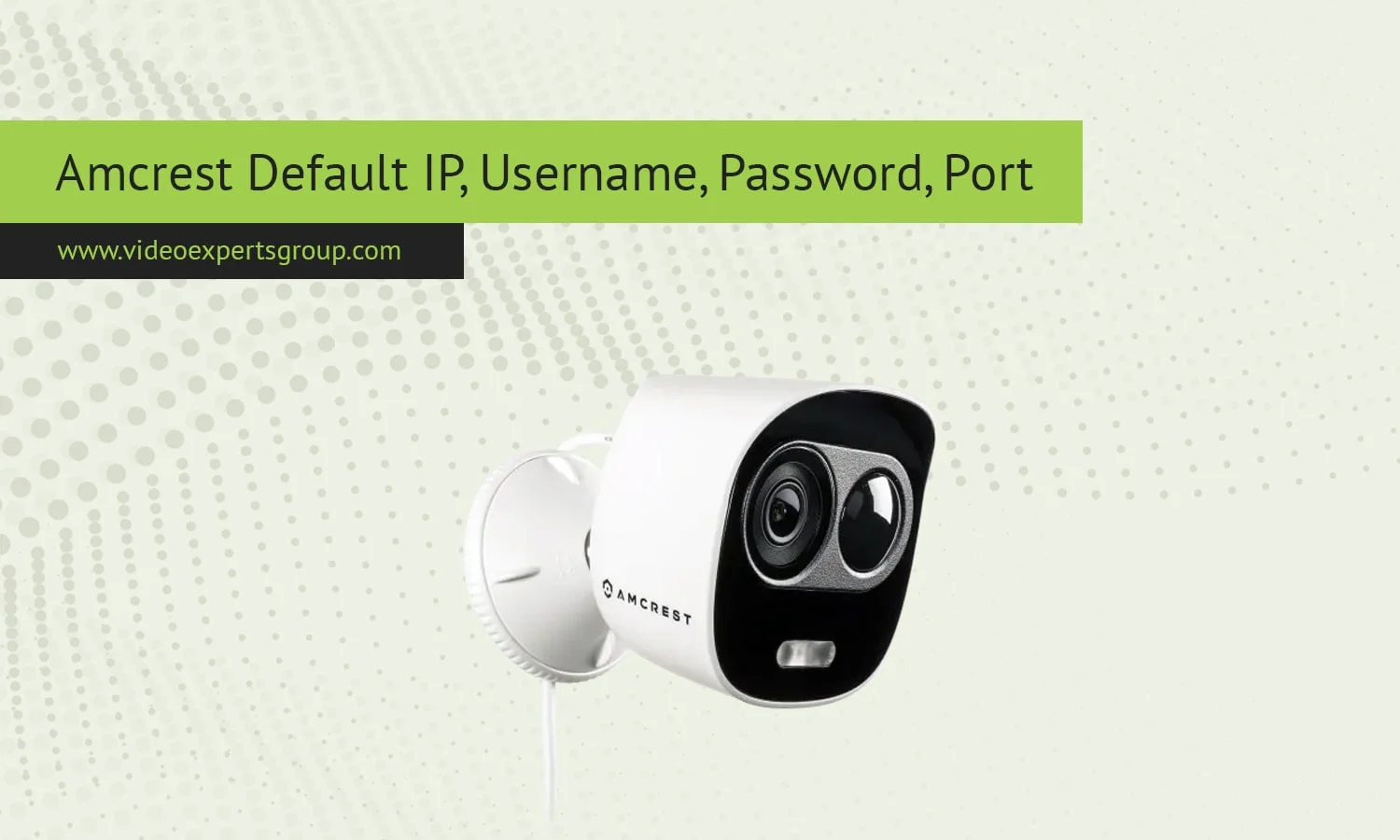
Amcrest is one of the well-known names in the security camera industry which offers affordable and reliable security solutions at cost-effective prices along with robust features. If you are going to install an Amcrest camera for the very first time, then knowing the default IP address, username, password, port can assist you in accessing the cameras for the first time. In this guide, we will be sharing the default IP address, username, password, port of the Amcrest cameras that will enable you to access them with ease.
Default IP Address
This is the IP address you will use to connect to your camera over the network. Most Amcrest camera that are used in conjunction with a router will receive a unique IP address through DHCP (Dynamic Host Configuration Protocol). DHCP assigns a unique IP address for the camera within the confines of the network. If the network or router is configured to operate without DHCP, the IP address assigned will be the default IP address which is 192.168.1.108.
To check or manually assign the IP address:
- Connect the camera to your network.
- Use Amcrest's IP Config tool, available on their website, or log into your router’s admin interface.
- Locate the camera's IP in the device list and note it for future access.
Default Username
The default login username for Amcrest cameras is admin. This username is a common admin username that is used by default to login to the device to allow user full control over the device. You may want to create a custom username during your first login.
Default Password
Another common default password for most Amcrest cameras is admin. Some newer models may not have a default password at all and will prompt you to create a password the first time you sign in. If you can't remember your password, you can typically reset the camera to default settings to make "admin" the default password.
To set a new password:
- Log in with the default credentials (if available).
- Go to "Settings" > "Account" > "Password."
- Enter and save a new password for enhanced security.
Default Port
The default values of the ports of Amcrest cameras are 80 (HTTP) and 37777 (TCP). While camera port 80 (HTTP) is used to browse your camera settings and live view, port 37777 (TCP) is used by Amcrest Surveillance Pro software for direct connection. You can change the ports in your camera to adapt to your network or if there is a port conflict with other devices.
To change the port:
- Log in to the camera’s web interface.
- Go to "Settings" > "Network" > "Connection."
- Set a new port number and save changes.
Changing default ports is an additional security measure, as leaving them on defaults can make cameras more vulnerable to unauthorized access.

