Default Credentials for Foscam Cameras
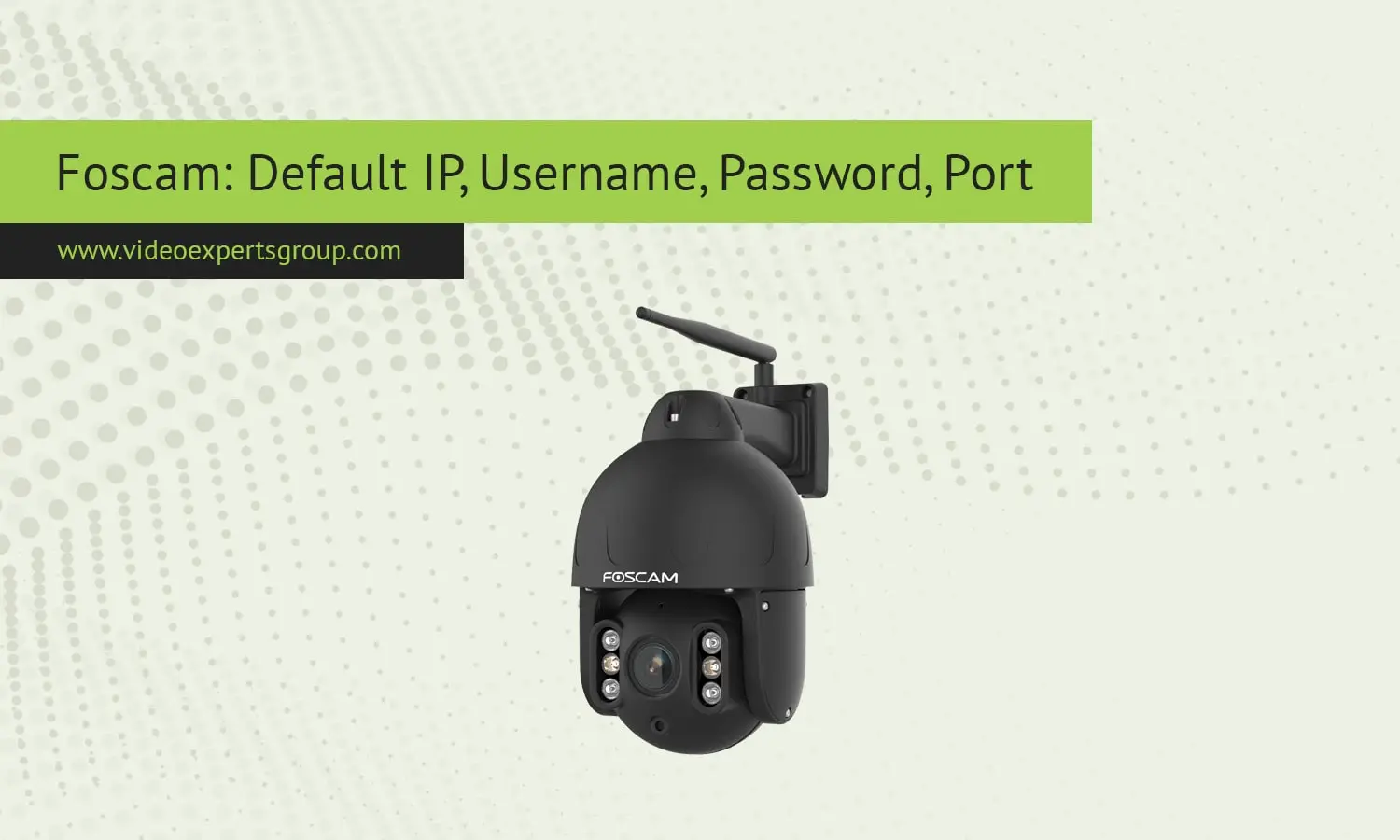
Foscam is a common name among security camera brands, which means it has become a household name in the market for quality IP cameras, especially for home and business use. To install a Foscam camera you will require the default network settings which comprise the IP address, username, password, and port. These default credentials are helpful for every installation, troubleshooting, or resetting of the camera. In this article, you will find the common default network setting of a Foscam camera.
Default IP Address
Most Foscam Cameras come with default IP addresses of 192.168.1.88 or 192.168.0.110 but the exact address will depend on your network. All Foscam cameras are configured to allow you to find a new IP address through DHCP which is auto assigned by your router. How to locate your Foscam IP address:
- Use the Foscam App or Software: Foscam offers both a mobile app and desktop software that can identify Foscam devices on your network.
- Log into your Router's Web Interface Most routers have a web GUI interface that allows you to see a list of connected devices and their IP addresses.
- Employ an IP scanning tool: By using a network scanner program such as advance IP Scanner, or perhaps angry IP Scanner, you will be able to find each of the devices that are on your system including your Foscam camera.
Default Username
The default username to access Foscam cameras is admin. The general user for admin allows the user to have full control of the camera's settings, for example, network configuration, video quality, and firmware upgrades. This username is full access and needs to be changed after setup.
Default Password
Many Foscam cameras are shipped with blank default passwords (it is left blank on the login page). Some newer Foscam units require you to establish a password during initial setup. If you have one that doesn't require you to establish a password, establish a robust one as soon as possible.
To change the password:
- Log in to the Foscam interface using the default or blank password.
- Go to Settings > User Settings.
- Enter a new, secure password to replace the default setting.
Tip: A strong password includes a mix of uppercase and lowercase letters, numbers, and symbols to increase security.
Default Port
The HTTP port is used to access your camera's web server by using a web browser. The default port for your Foscam camera is 88 and you might consider changing this to something less common, as port scans are frequently used by cyber hackers looking for cameras.
To change the port:
- Log in to your camera’s web interface.
- Go to Settings > Network > Port Settings.
- Change the HTTP Port to a new value (e.g., 8080).
- Save your settings, and remember to use the new port when accessing the camera in the browser.
For remote access to the Foscam camera outside your local network, you will need to configure port forwarding on your router.

