Default Login Credentials for Verkada Cameras
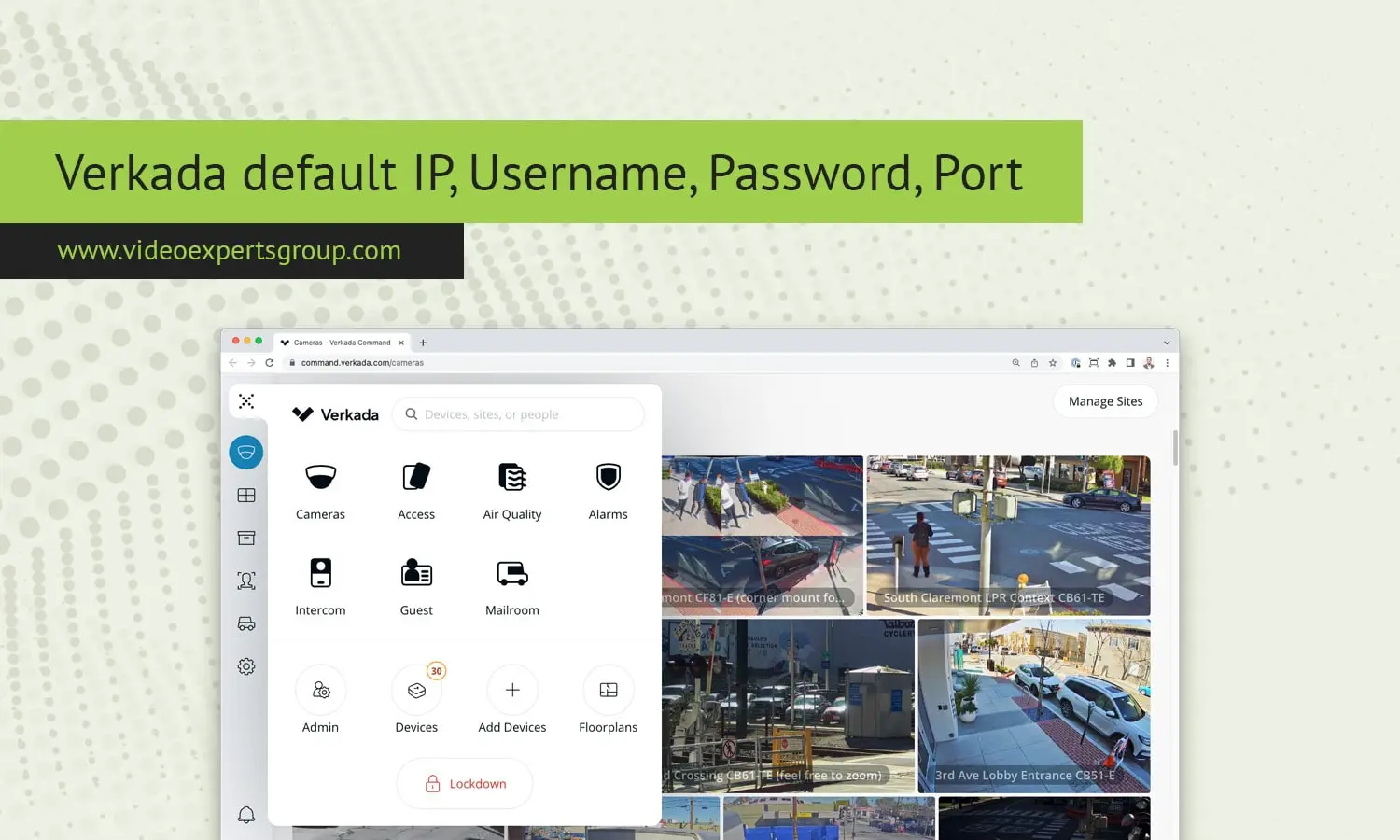
Modern, connected, cloud-based security systems have become Verkada. Bridge the gap between network security and physical security by learning how to set up a Verkada camera. Once you understand the default ip address, username, password and port of a Verkada camera, you'll be able to troubleshoot it and get it up and running in no time.
Default IP Address
Unlike many of your traditional IP cameras, Verkada cameras are intended to be a part of a cloud-managed system, so a static IP address is not required to initially set up the device. When you power on a Verkada camera and connect it to a network with access to the internet, your camera will send a request to the Verkada cloud. The camera will not have a default/static IP address because it is primarily managed through Verkada's cloud.
However, if you need to locally access the camera for troubleshooting, or while the camera is temporarily disconnected from the cloud, it will in most cases have an IP address assigned to it by your local DHCP server (the device that manages the IP addresses on your network, in most cases your internet router). You can view this address through your connected devices on your router, or on the Verkada Command platform.
Default Username
Verkada cameras do not have a default local username that can be used to gain access to the camera's controls. All management takes place within the Verkada cloud platform, Verkada Command, which includes user management. Verkada Command enables administrators to assign roles to various users and manage access permissions.
There is no need to create a local default username when configuring your camera. To access the camera, you will sign in to the Verkada Command platform with the credentials provided by your system administrator or when first establishing your Verkada account.
Default Password
Just as there is no set local password on a Verkada camera, you don't have any local authentication on the camera and it's all cloud-based login credentials. This is good because it is secure, eliminating the risk of default passwords that can otherwise be hacked into by unwanted users.
When signing up, you will set a password for your Verkada Command account - the login to view and access your cameras. Verkada allows multi-factor authentication (MFA) to help protect your Verkada Command account.
Default Port
Unlike other IP cameras, you don't need to designate certain ports on your network to open up for remote access and communication with the cameras. Instead, Verkada cameras work using outbound connection to Verkada's cloud servers, so no additional configuration or ports to open up in your router are necessary to deploy cameras.
Verkada cameras communicate securely over the web using HTTPS (Port 443), and can use standard SSL encryption, preventing any sensitive video data from being compromised. This approach prevents the need to open any ports on your firewall, and no ports need to be left open by default for remote access to the cameras.
This new approach to surveillance cameras by Verkada circumvents many of the security issues that traditional IP camera designs have encountered with default passwords, default IP address, default username, port forwarding, and leaving ports open by default. Because Verkada manages everything remotely through their cloud platform, customers don't need to leave ports open and should never need to configure default credentials or IP address.

