Default Login Credentials for Wansview Cameras
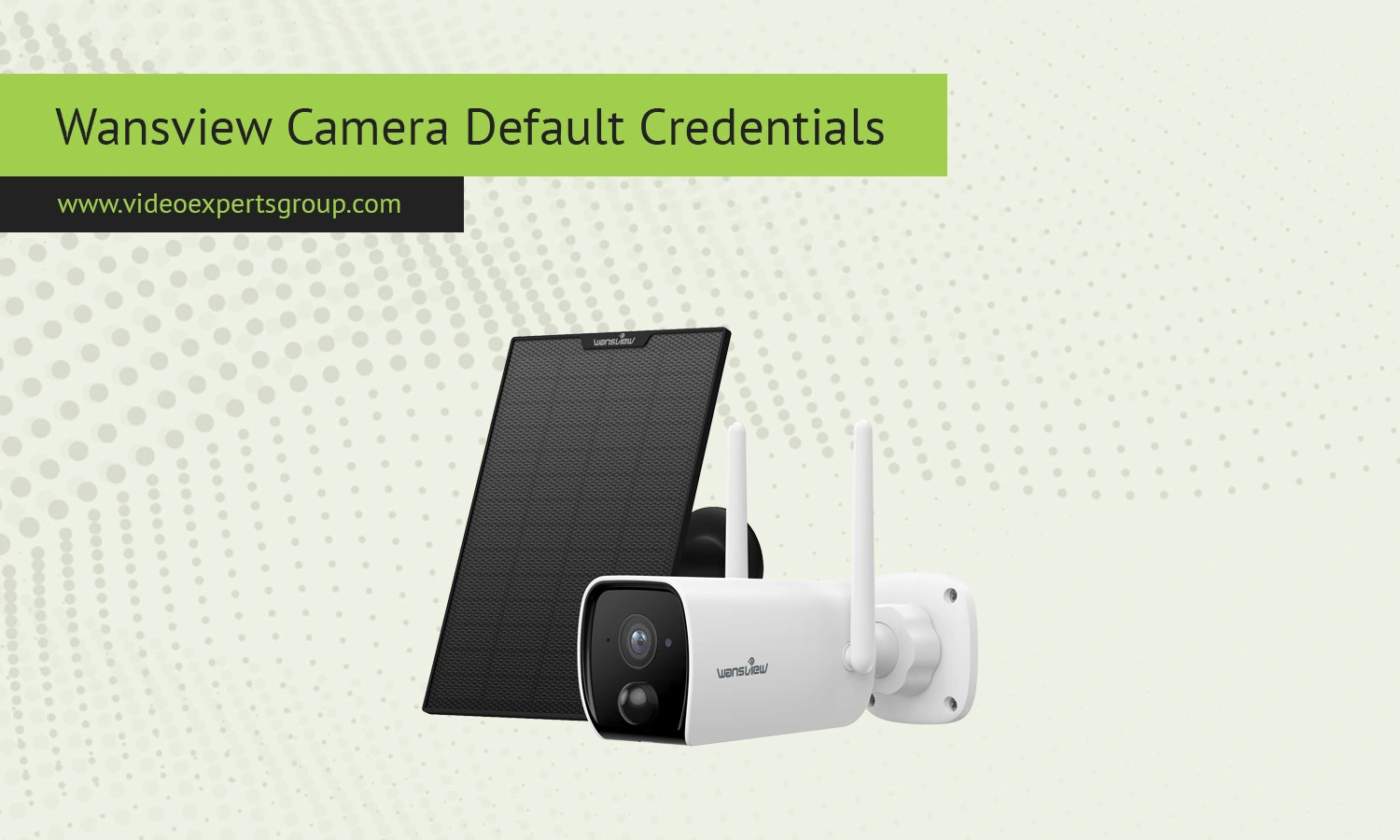
Wansview IP cameras are used for home monitoring, baby monitoring, office security, and remote surveillance. They are preferred by many because they are quick and easy to install, Wi-Fi compatible, provide motion alerts, and can be accessed by phone. Wansview IP camera access information is stored on the device, like most network cameras.
Know the default IP address, username, password and portKnowing the default IP address, username, password and port is necessary, whether on setup or after a reset to the factory. They are keys to reach the camera interface, set wireless settings, firmware update and restrict access to the device. Default credentials are easy to use during setup, but should be changed at the first login.
Default IP
Most Wansview IP cameras use DHCP by default, which means the router automatically assigns an IP address to the camera. However, some models may initially use one of the following local IP addresses:
192.168.1.100192.168.0.100192.168.1.10
If you cannot locate the camera on your network, check the connected devices section of your router or use a network scanner utility. Some Wansview models can also be discovered through the official setup application.
Default Username
It was encountered by me that the default username for Wansview cameras is: admin.
Most of the previous iterations in general use this administrator account in order to have the access for the live video streams along with settings.
Some newer Wansview cameras may ask users to set up an administrator account during the first setup, rather than defaulting to a pre-selected username.
Default Password
Depending on the camera generation and firmware version, the default password may be:
admin123456- blank field with no password
Many newer models of Wansview cameras do not have universal default passwords these days for safety and security. They set your own custom password when you first connect your device.
If it is not possible to log in, it is possible that the camera has already been setup earlier. In such cases, a factory reset will take you back to the default settings.
Default Port
Wansview IP cameras commonly use the following network ports:
- HTTP port:
80 - RTSP port:
554 - ONVIF port:
8899or5000depending on the model
For browser access the HTTP port, or for using streaming video software and for compatibility with NVR systems, RTSP.
In case remote viewing is activated, some people switch the common http port into 8080 or 8888 to prevent conflicts with routers or internet suppliers.

Connect Wansview cameras to VXG Cloud VMS with GenAI for free
Learn moreFAQs
