Jovision Camera: Default IP, Username, Password, Port

Cameras 8 minutes
Jovision Camera: Default IP, Username, Password, Port

Jovision is a well-known brand in the security and surveillance market, offering a wide range of IP cameras and DVR systems trusted by both homeowners and businesses. Their devices are valued for ease of installation, stable connectivity, and compatibility with mobile and desktop viewing software. Understanding the default login credentials is essential when setting up a new Jovision camera or restoring access after a reset. Below is a detailed breakdown of the default IP address, username, password, and port used in most Jovision models, along with answers to common setup questions.

Default IP Address

Most Jovision IP cameras use 192.168.1.10 as the default IP address. This allows local access through a web browser or Jovision’s configuration tool when your computer is connected to the same network. If the camera does not appear online, check whether your router assigns IPs in the same range or use the Jovision CloudSEE Search Tool to locate the device automatically.

Default Username

The default username for Jovision cameras is admin. This account gives full access to all configuration menus, including video quality, motion detection zones, and network setup. To maintain good cybersecurity hygiene, create a new administrator account after installation and use a strong password.

Default Password

In most cases, Jovision cameras ship with the default password 123456 or admin, while some newer models come without any preset password. If you cannot log in using these credentials, your camera might already be configured by a distributor or integrator, in which case a factory reset will restore access with default settings. Always change the password immediately after login to prevent unauthorized use of your system.

Default Port

Jovision cameras typically use HTTP port 80 for web access, but certain models employ port 7050 for mobile and remote connections. Adjusting the port number in the camera’s settings can help avoid conflicts with other devices on your network. If you plan to view the feed remotely, configure port forwarding in your router or use Jovision’s cloud-based connection features to simplify setup.

ONVIF uplink

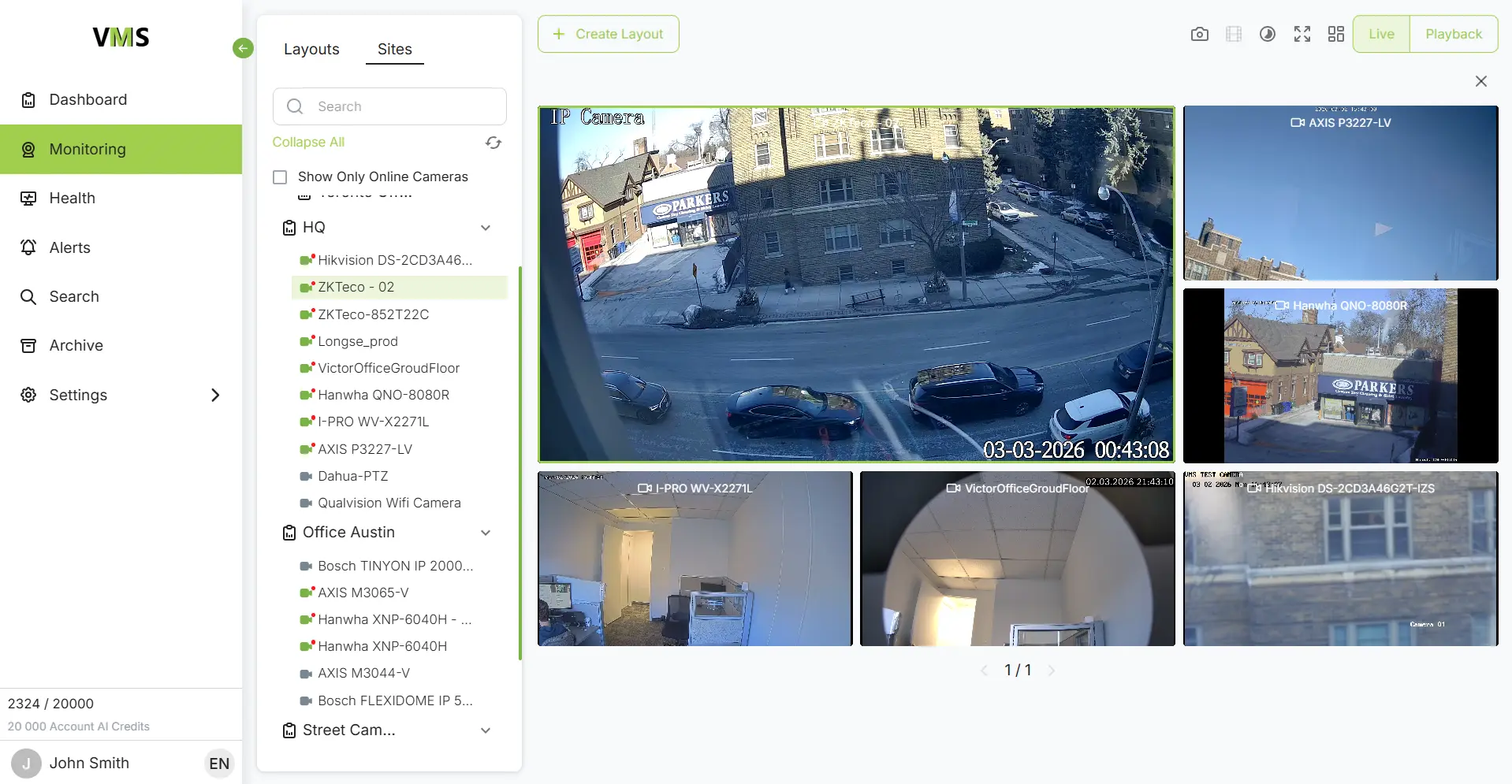
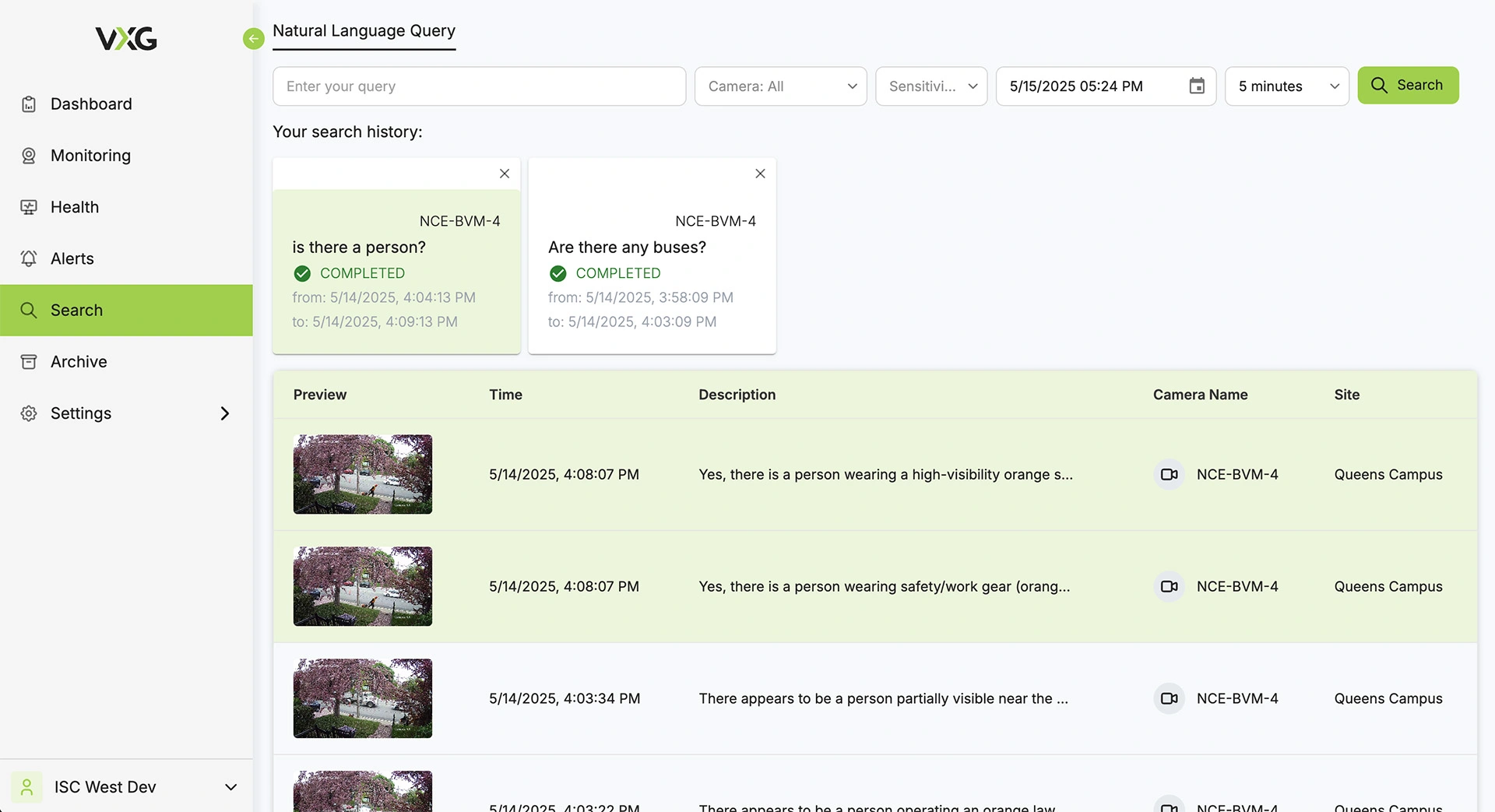
Connect Jovision cameras to VXG Cloud VMS with GenAI for free

Learn more

FAQs

Press and hold the reset button on the camera for about 10 to 15 seconds while it is powered on. Once the camera restarts, it will revert to factory defaults including IP, username, and password.
Your router may be assigning a different IP range. Run the Jovision IP Search Tool or CloudSEE software to automatically detect the correct IP address assigned to your device.
Yes, you can. Navigate to the camera’s network settings and modify the HTTP or media port to another number, such as 8080. Just remember to update the app or browser settings to match the new port.
Absolutely. Leaving the default username and password unchanged exposes your camera to significant security risks. Always use a strong, unique password to protect your video feed from unauthorized access.

Follow us on

VXG Cloud Video Management System

Cloud VMS with GenAI

for Security, VSaaS, VMS,
Telecom

  • Cloud storage
  • Generative AI
  • Fully scalable
  • White-label
Get demo