SSD (Solid-State Drive): Meaning, Types, Pros, Cons, Comparison
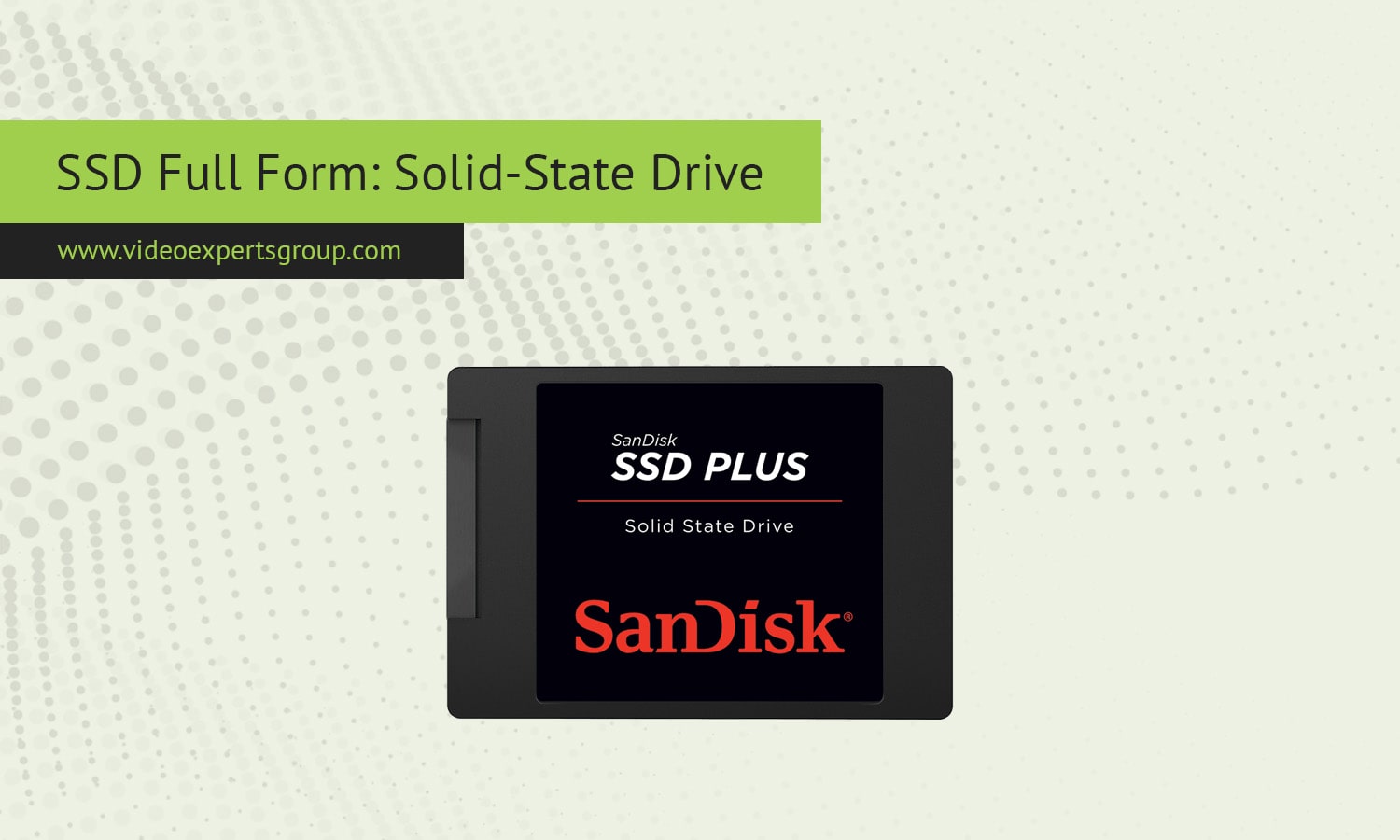
Speed and efficiency have become essential in modern computing, and the type of storage drive inside your device plays a major role in both. Whether you’re booting up your computer, opening large applications, or transferring data, storage performance directly affects how smooth and responsive everything feels. SSDs, or Solid-State Drives, have replaced older mechanical hard drives as the preferred choice for most users. By using flash memory instead of moving parts, they deliver faster speeds, greater reliability, and improved energy efficiency. Understanding what an SSD is and how it compares to other storage types can help you choose the best option for your needs.
Meaning
SSD stands for Solid-State Drive, a modern data storage device that uses flash memory to store information permanently. Unlike traditional hard drives that rely on spinning disks and moving read/write heads, SSDs use NAND-based memory chips to access data electronically. This makes them much faster, quieter, and more energy-efficient. The technology behind SSDs originated in enterprise servers but is now common in laptops, desktops, and gaming consoles because of its speed and reliability. Essentially, an SSD serves the same purpose as an HDD — storing your operating system, applications, and files — but it does so with much greater efficiency and durability.
Types of SSD
SSDs come in various forms depending on their interface and physical design. The most common is the SATA SSD, which connects through the same interface as traditional hard drives and offers a good balance between speed and compatibility. M.2 SSDs are smaller and connect directly to the motherboard, making them ideal for ultrabooks and compact PCs. Then there are NVMe SSDs (Non-Volatile Memory Express), which use the PCIe interface instead of SATA and deliver dramatically higher read/write speeds. Some devices, like older tablets or budget laptops, may use mSATA or U.2 SSDs, though these formats are now less common as M.2 dominates the market.
Pros and Cons
The biggest advantage of SSDs is speed. They can boot up your computer in seconds, open programs instantly, and transfer large files quickly. They are also shock-resistant, since they lack moving parts, and tend to be quieter and more power-efficient, which helps extend battery life in laptops. On the downside, SSDs are typically more expensive per gigabyte than HDDs and can have limited write cycles, meaning their lifespan can eventually wear out with very heavy use. However, for most users, modern SSDs last many years without issue and provide far better overall performance than traditional drives.
SSD vs. HDD
The primary difference between an SSD and an HDD lies in how they store and access data. HDDs use magnetic spinning platters and mechanical arms, which means data retrieval involves physical movement. SSDs, by contrast, have no moving parts — they use flash memory that can instantly access data blocks. This results in much faster boot times, shorter load times, and better multitasking performance. HDDs still hold an advantage in terms of cost and storage capacity, making them suitable for archival storage or large media libraries, but for most everyday computing, SSDs are now the superior choice.
SSD vs. NVMe
While all NVMe drives are SSDs, not all SSDs use the NVMe interface. NVMe is a protocol specifically designed to exploit the full potential of flash storage over the PCIe bus. It allows for much higher data transfer speeds and lower latency compared to SATA-based SSDs. In simple terms, NVMe SSDs can read and write data several times faster than standard SATA SSDs, making them ideal for gaming, video editing, and heavy data workloads. The only drawback is that NVMe drives are usually more expensive and require motherboard support for PCIe slots.
SSD vs. eMMC
eMMC, or embedded MultiMediaCard, is another type of flash-based storage often used in smartphones, tablets, and inexpensive laptops. While both SSD and eMMC use NAND flash, SSDs have a more sophisticated controller and interface, allowing for faster and more consistent performance. eMMC storage is typically soldered to the motherboard and not replaceable, whereas SSDs are usually modular and can be upgraded. In performance terms, an SSD is significantly faster and more durable, while eMMC is suited to low-cost, lightweight devices where storage performance is less critical.
FAQs
