Wansview Camera: Default Credentials
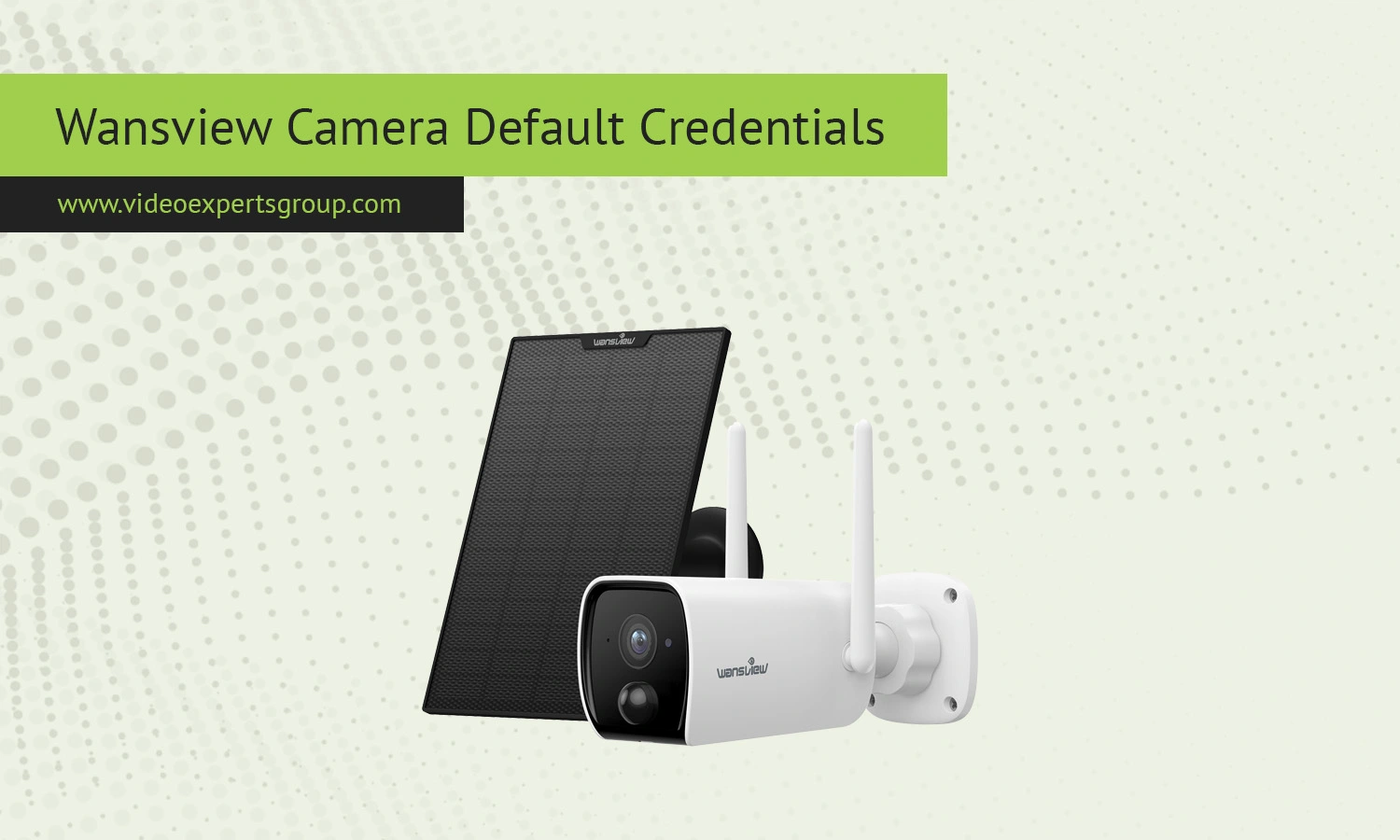
Wansview IP cameras are popular for home monitoring, baby surveillance, office security, and remote viewing. Many users choose them because they are easy to install and support Wi-Fi connectivity, motion alerts, and mobile access. Like most network cameras, Wansview devices come with default credentials that help users log into the camera for the first time.
Understanding the default IP address, username, password, and port is important during setup or after a factory reset. These details allow you to access the camera interface, configure wireless settings, update firmware, and secure the device against unauthorized access. While default credentials simplify installation, they should always be changed after the first login to improve security.
Default IP
Most Wansview IP cameras use DHCP by default, which means the router automatically assigns an IP address to the camera. However, some models may initially use one of the following local IP addresses:
192.168.1.100192.168.0.100192.168.1.10
If you cannot locate the camera on your network, check the connected devices section of your router or use a network scanner utility. Some Wansview models can also be discovered through the official setup application.
Default Username
The most common default username for Wansview cameras is: admin.
Older models usually rely on this administrator account for full access to settings and live video streams.
Newer Wansview cameras may require users to create an administrator account during the first setup process instead of relying on a preset username.
Default Password
Depending on the camera generation and firmware version, the default password may be:
admin123456- blank field with no password
Many modern Wansview cameras no longer use universal default passwords for security reasons. Instead, they ask users to create a custom password when connecting the device for the first time.
If the login details do not work, the camera may already have been configured previously. In that case, performing a factory reset can restore the original configuration.
Default Port
Wansview IP cameras commonly use the following network ports:
- HTTP port:
80 - RTSP port:
554 - ONVIF port:
8899or5000depending on the model
The HTTP port is used for browser-based access, while RTSP supports video streaming through compatible software and NVR systems.
If remote viewing is enabled, some users change the default HTTP port to alternatives such as 8080 or 8888 to avoid conflicts with routers or internet providers.

Connect Wansview cameras to VXG Cloud VMS with GenAI for free
Learn moreFAQs
