Yoosee Camera: Default Login Credentials
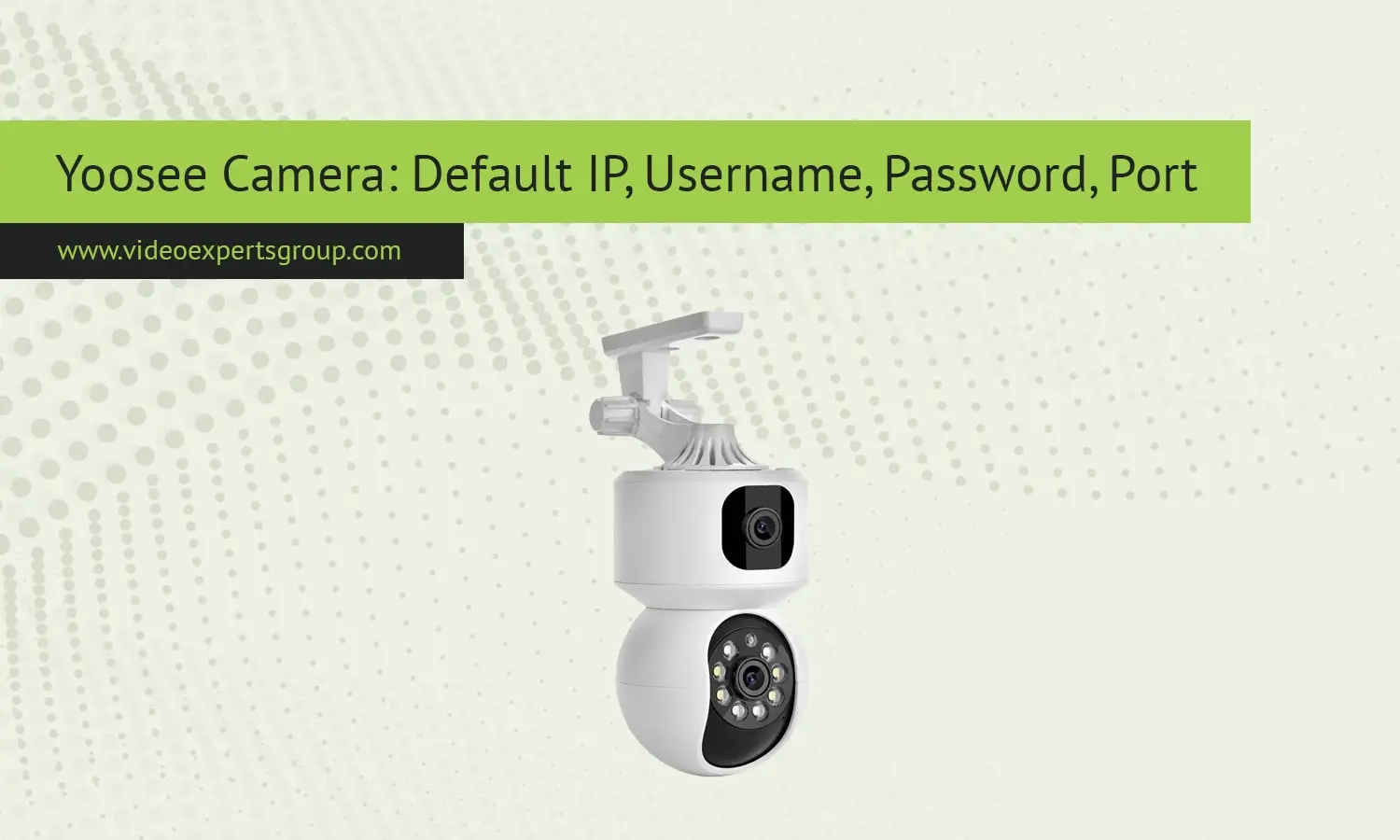
Yoosee camera is a budget friendly smart security camera with easy installation, making it a popular choice for home and small business owners. Yoosee cameras enable users to view their property remotely on the Yoosee app or on a web browser. Most models use both Wi-Fi and Ethernet connection, which provides greater flexibility in the placement and access to the camera remotely. To install or reset your Yoosee camera to its original factory settings, you will need the default login credentials of the network, which can be used to sign in, set up your network and protected the camera.
Default IP Address
Commonly used default IP address for Yoosee IP camera are 192.168.1.10. When you want to access your camera via browser, you need to connect your computer and the camera in the same local network. Because the camera obtained a new address from the router automatically, if the default IP doesn't work, use the Yoosee or CMS Client software to find the latest assigned IP address to your camera.
Default Username
The standard username for all Yoosee cameras is admin. You get administrative rights for configuring the system, networks, and even video frames. We recommend that you create a new user and disable the main one or change the username after the first login.
Default Password
Yoosee default password Yoosee cameras default username and password will be one of the following: 123, admin, or a blank password (no password). A new camera may require you to create a password for the first login but you need to do this so you don't leave a security flaw in your camera that you can be exploited by hackers. Reset your camera if you are unable to login and use the default user name/password.
Default Port
Yoosee cameras typically use port 80 (HTTP) for local access and port 554 (RTSP) for remote video streaming. Certain models utilize port 5000 for their P2P connection within the mobile app. These ports can be changed in the camera's network settings to avoid conflicts with other devices on your LAN and to tighten security. When configuring remote access, keep in mind that you'll need to set up port forwarding on your router (or use the built-in P2P connection).

