D-Link Camera: Default IP, Username, Password, Port
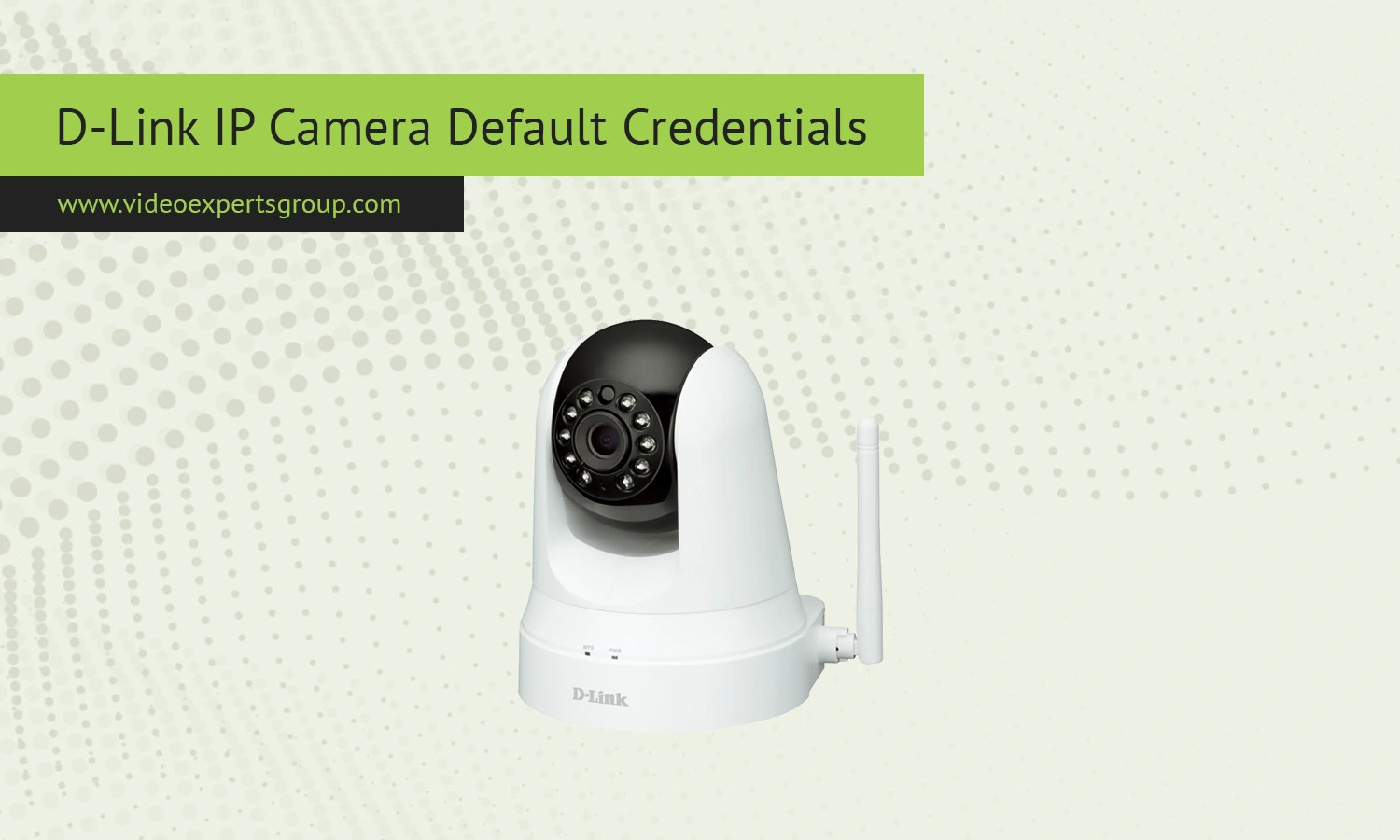
D-Link IP cameras have been around for years and are used in homes, offices, and small retail setups. Depending on the model, they can work as standalone devices or as part of a broader smart home system. Because the product line spans older legacy cameras and newer cloud-enabled models, default credentials can vary quite a bit. Some devices still allow direct browser access with standard login details, while others require setup through the mydlink platform. Knowing the typical defaults and how they changed over time helps avoid frustration when connecting to a camera locally or through third party software.
Default IP
D-Link IP cameras usually do not have a fixed default IP address. By default, they request an IP automatically from the router using DHCP. This means the camera will appear on your network with an address like 192.168.0.x or 192.168.1.x.
- Log into your router and check the list of connected devices
- Use the D-Link setup wizard or mobile app to locate the camera
- Run a network scan tool to detect the device
Some older D-Link cameras may use a temporary fallback IP such as 192.168.0.20 during initial setup, but this depends on the model and firmware.
Default Username
The most common default username for D-Link IP cameras is: admin.
This applies to many legacy models that support direct web login. On newer mydlink-enabled cameras, the login process is tied to your account, and you may not use a traditional username at all when accessing the device.
Default Password
For older D-Link cameras, the default password is often: (blank password).
In other words, you leave the password field empty and log in with the admin username. Some models may also use "admin" as both username and password. Newer devices require you to create a password during setup, and they will not allow access until a secure password is set.
Default Port
D-Link cameras typically use the following ports for communication:
Depending on your configuration, these ports can be changed in the settings. If you plan to access the camera remotely, you may need to configure port forwarding on your router or rely on the built in cloud service.

Connect D-Link cameras to VXG Cloud VMS with GenAI for free
Learn moreFAQs
