Ivideon Camera: Default Credentials
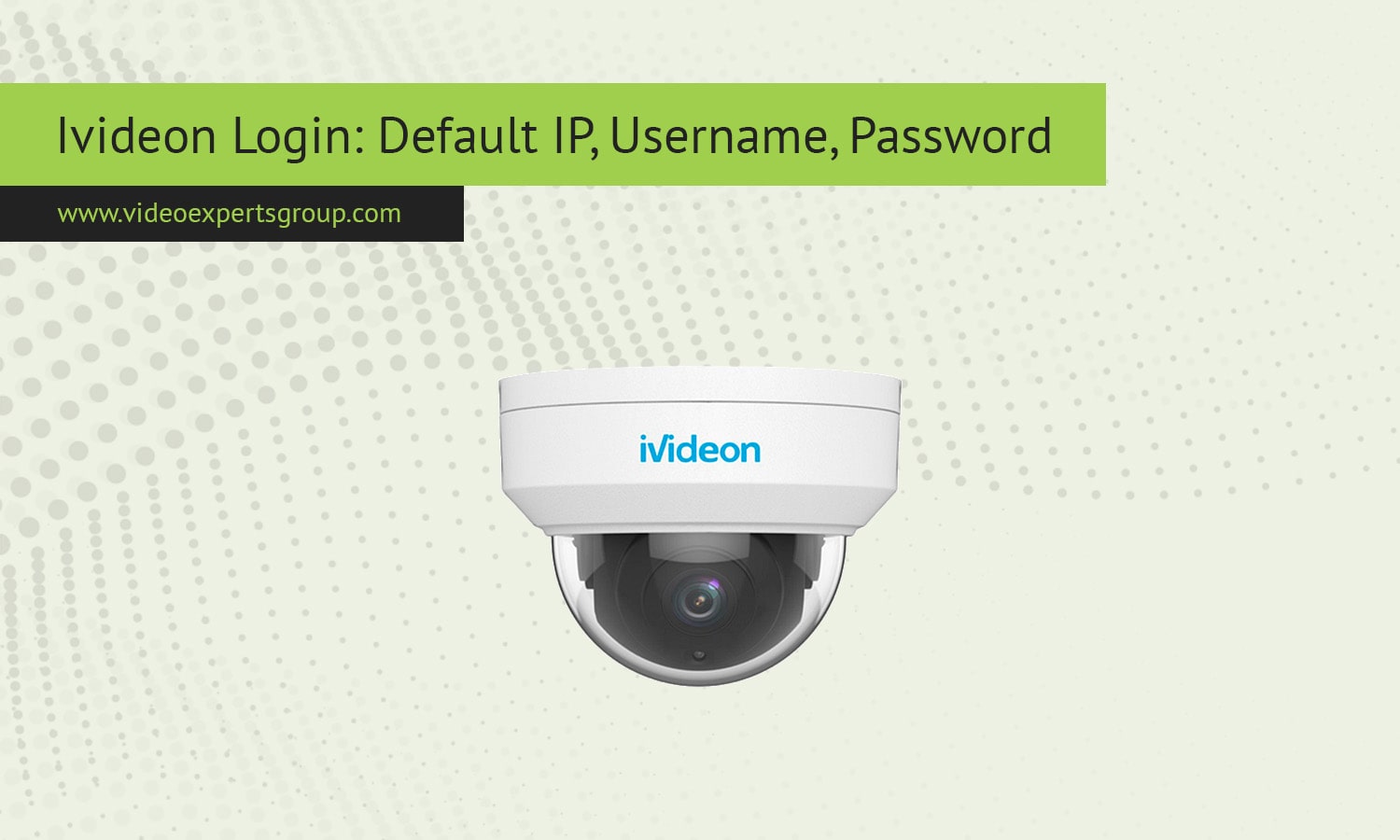
Ivideon cameras are designed around cloud video surveillance rather than traditional standalone IP camera management. Many devices sold under the Ivideon brand or marked “Ivideon Ready” connect directly to the Ivideon cloud service for remote viewing, storage, and analytics. Because of this architecture, login and network behavior can differ from conventional CCTV cameras that rely primarily on local web interfaces. Still, installers and administrators often need to access local settings, integrate cameras with routers or NVRs, or troubleshoot connectivity. Understanding the default IP address, username, password, and ports used by Ivideon-compatible cameras helps simplify setup and maintenance in both home and business deployments.
Default IP
Most Ivideon-branded or Ivideon Ready cameras obtain their network address automatically from a DHCP server, typically a router. This means they do not always have a fixed factory IP like traditional CCTV devices. After connecting the camera to a network with DHCP enabled, it receives an address from the local subnet. In many installations this results in an address such as 192.168.0.x or 192.168.1.x, depending on router configuration.
If the network does not provide DHCP, some models fall back to a default static address, commonly 192.168.1.100. However, this behavior depends on the manufacturer that produced the Ivideon-compatible hardware, since Ivideon partners with several OEM camera vendors. For reliable discovery, installers usually:
- check the router DHCP client list
- use the Ivideon desktop setup utility
- scan the network with an IP scanner
Once the camera appears in Ivideon cloud, local IP becomes less critical because remote access occurs through the service rather than direct LAN login.
Default Username
Ivideon cameras prioritize cloud account authentication instead of local user accounts. During initial setup, the device is linked to an Ivideon user profile, and access rights are managed in the cloud interface. As a result, many models do not expose a traditional standalone username prompt unless local web access is enabled.
For models that do provide direct web interface login, the most common default username is admin. Some OEM variants instead use root or a blank username. After linking the camera to an Ivideon account, administrators are typically encouraged to change or disable local credentials to reduce unauthorized LAN access.
Typical username behavior across Ivideon ecosystem:
- Cloud access - Ivideon account email
- Local web login - admin
- OEM variants - root or user
Because Ivideon devices are often deployed in shared or public environments, changing default usernames is considered a basic security step.
Default Password
Many Ivideon cameras ship without an active local password until they are claimed in the Ivideon cloud platform. During onboarding, the administrator creates or assigns credentials through the setup workflow. This differs from legacy CCTV cameras that ship with a fixed password such as admin or 12345.
If a web interface exists before activation, the typical default password is one of the following:
- admin
- 12345
- blank (empty)
After linking to Ivideon cloud, local passwords may be automatically randomized or replaced with cloud token authentication. This design prevents unauthorized access if the camera is exposed to the internet. If login fails, resetting the device usually restores the onboarding state rather than a static password.
For security, administrators should always:
- set a strong Ivideon account password
- enable two-factor authentication
- disable unused local accounts
Default Port
Ivideon cameras rely heavily on outbound cloud communication instead of inbound port forwarding. This simplifies deployment behind NAT routers and firewalls. Most devices initiate encrypted connections to Ivideon servers over standard web ports, so remote access works without manual configuration.
Common ports associated with Ivideon cameras include:
- 80 - HTTP local web interface
- 443 - HTTPS and cloud communication
- 554 - RTSP video stream (if enabled)
- 8800 or 8888 - proprietary service ports on some models
Unlike traditional IP cameras, administrators rarely need to open or forward ports on the router. Remote viewing occurs through Ivideon relay infrastructure, which maintains a secure outbound tunnel from the camera or gateway device. Local ports are mainly used for LAN access or integration with third-party video software.
For a visual guide on setting up Ivideon Bridge, you can refer to the following tutorial:

Connect Ivideon cameras to VXG Cloud VMS with GenAI for free
Learn moreFAQs
