iVMS-4500: Login & Download for Windows, Mac
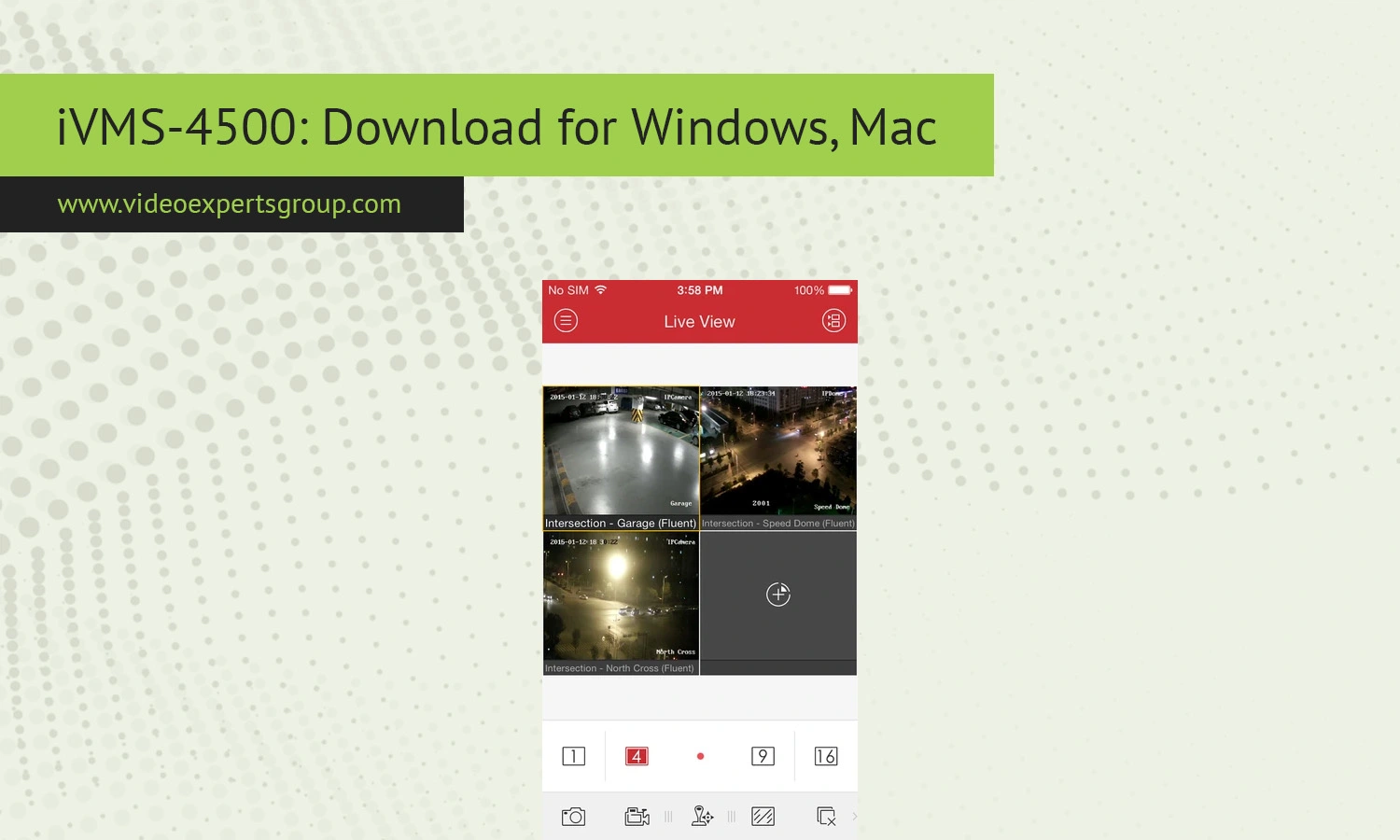
iVMS-4500 was one of the most popular mobile surveillance applications developed for remote video monitoring and playback. Many users still search for ways to download and use the software on Windows and Mac computers, even though the application was originally designed for smartphones and tablets. The platform became widely used with Hikvision DVRs, NVRs, IP cameras, and video intercom systems because it offered remote access, live streaming, playback, alarm notifications, and PTZ control in a single interface.
Although newer Hikvision applications have replaced iVMS-4500 in many regions, countless security systems still rely on it for daily operation. This guide explains what iVMS-4500 is, how to download it for Windows and Mac, how to log in and configure devices, common troubleshooting methods, compatibility information, and the best alternatives available today.
About iVMS-4500
iVMS-4500 is a video surveillance management application created by Hikvision. The software was originally developed for Android and iOS devices to provide remote monitoring for Hikvision security products.
The application allows users to connect to:
- DVR systems
- NVR systems
- IP cameras
- Video intercom devices
- Network encoding devices
- Alarm systems
Using iVMS-4500, users can view live video streams from multiple cameras, search recorded footage, receive motion alerts, and manage security devices remotely through the internet or local network.
The app gained popularity because it was lightweight, easy to configure, and compatible with many Hikvision products. It became especially common among homeowners, small businesses, warehouses, retail stores, and office environments.
Even though Hikvision later introduced newer apps such as Hik-Connect, many users continue using iVMS-4500 because of its familiar interface and stable performance on older systems.
Features
iVMS-4500 includes a broad set of surveillance and remote management functions. Depending on the connected device model, users may access different features.
Live View Monitoring
The application supports real-time monitoring of connected cameras and recorders. Users can switch between single-camera and multi-camera layouts to monitor several locations simultaneously.
- Real-time video streaming
- Multiple channel view
- HD and sub-stream support
- Portrait and landscape mode
- Digital zoom support
Remote Playback
Users can search recorded footage remotely without physically accessing the recorder.
- Timeline playback
- Date and time search
- Playback speed control
- Pause and frame-by-frame review
- Video clipping and export support
PTZ Camera Control
For compatible cameras, iVMS-4500 supports PTZ operations.
- Pan control
- Tilt adjustment
- Optical zoom
- Preset management
- Patrol configuration
Alarm Notifications
The software can receive alerts from connected devices.
- Motion detection alerts
- Video loss notifications
- Intrusion detection alarms
- Line crossing events
- Push notifications
Snapshot and Recording
Users can capture screenshots or save live video directly to their device.
- Manual recording
- Snapshot capture
- Local media storage
- Playback of saved files
Device Management
The application supports several methods for adding surveillance devices.
- IP address connection
- Domain connection
- Hik-Connect cloud access
- QR code scanning
- Manual device configuration
Compatibility
iVMS-4500 was primarily designed for mobile operating systems, but users often run it on desktop platforms using Android emulators.
Supported Operating Systems
- Android
- iOS
- Windows via Android emulator
- macOS via Android emulator
Compatible Hikvision Devices
The software works with many Hikvision products released over the years.
- Turbo HD DVRs
- Network Video Recorders
- Standalone IP cameras
- PTZ cameras
- Video door stations
- Access control systems
Internet Requirements
For remote access outside the local network, users usually need:
- Stable broadband internet
- Port forwarding or cloud access
- Public IP address or P2P service
- Proper firewall configuration
Slow internet connections may reduce video quality or increase buffering during playback.
Troubleshooting
Like many surveillance applications, iVMS-4500 may occasionally experience connection issues, login failures, playback problems, or streaming interruptions. Most issues can be fixed through basic troubleshooting steps.
Unable to Connect to Device
If the application cannot connect to the recorder or camera:
- Verify the IP address and port number
- Check internet connectivity
- Ensure the device is powered on
- Confirm the username and password are correct
- Check firewall and router settings
- Restart the recorder and router
Playback Not Working
Remote playback issues are often caused by:
- Incorrect time synchronization
- Missing recordings
- Low internet bandwidth
- Unsupported stream settings
- Storage device errors
Verify that recordings exist on the DVR or NVR before attempting playback.
App Crashes or Freezes
If iVMS-4500 freezes or crashes frequently:
- Update the emulator or operating system
- Clear temporary cache files
- Reduce the number of simultaneous streams
- Lower video quality settings
- Reinstall the application
No Push Notifications
Push notification problems may occur when:
- Notifications are disabled in settings
- Battery optimization blocks background activity
- The device is offline
- Alarm rules are not configured properly
Wrong Password Error
Repeated login failures may lock the device temporarily. Double-check credentials carefully before retrying.
If the password is forgotten:
- Use Hikvision password reset procedures
- Contact the installer
- Use SADP tools if supported
- Reset the device manually if necessary
Download
iVMS-4500 was originally developed for mobile devices and remains available for Android and iOS users in some regions. Depending on your device and app store availability, you may need to install an archived version of the application.
Android
Android users can install iVMS-4500 through APK files or supported app marketplaces.
- Open Google Play Store or a trusted APK source.
- Search for iVMS-4500.
- Download and install the application.
- Allow the required permissions.
- Launch the app and configure your devices.
Before installing APK files manually, make sure installation from unknown sources is enabled in Android settings.
Recommended requirements:
- Android 5.0 or newer
- Stable Wi-Fi or mobile internet connection
- At least 2 GB RAM
- Enough free storage space for recordings and snapshots
iOS
iPhone and iPad users can install iVMS-4500 from the Apple App Store if the application is still available in their region.
- Open the App Store.
- Search for iVMS-4500.
- Tap Download.
- Install the application.
- Open the app and add your surveillance devices.
If the app no longer appears in the App Store, users may need to switch to newer Hikvision applications such as Hik-Connect.
Recommended requirements:
- iOS 11 or newer
- iPhone or iPad with stable internet access
- Available storage for local recordings and snapshots
Login & Setup
Setting up iVMS-4500 is usually straightforward once the recorder or camera is connected to the internet.
Adding a Device
- Open iVMS-4500.
- Go to the Devices section.
- Select Add Device.
- Choose the connection method.
- Enter device information.
- Save the configuration.
Required Information
Users generally need the following:
- Device nickname
- IP address or domain
- Port number
- Username
- Password
Using Hik-Connect
Some devices support cloud-based access through Hik-Connect.
This method simplifies remote access because users do not need manual port forwarding.
- Enable Hik-Connect on the recorder.
- Create a Hik-Connect account.
- Scan the QR code.
- Add the device to the account.
- Access the system remotely.
Optimizing Video Quality
For smoother streaming:
- Use sub-streams on mobile networks
- Reduce bitrate settings
- Lower frame rates if necessary
- Use wired internet for recorders
iVMS-4500 Alternatives
Although iVMS-4500 remains popular, many users now prefer modern cloud-based surveillance platforms with improved compatibility, security, and remote access features.
One strong alternative is VXG App.
Why Consider VXG App
- Cloud-based infrastructure
- Remote camera management
- Browser-based access
- Mobile applications
- Multi-site monitoring
- AI video analytics support
- Scalable architecture
- Works with many camera brands
Unlike older surveillance software that depends heavily on local networking and manual configuration, modern cloud VMS platforms simplify deployment and maintenance.
When to Upgrade from iVMS-4500
Users often migrate to newer solutions when they need:
- Centralized cloud management
- Better cybersecurity
- Cross-platform compatibility
- Enterprise scalability
- Advanced AI features
- Remote administration tools
FAQs
