Liberty Camera: Default IP, Username, Password, Port
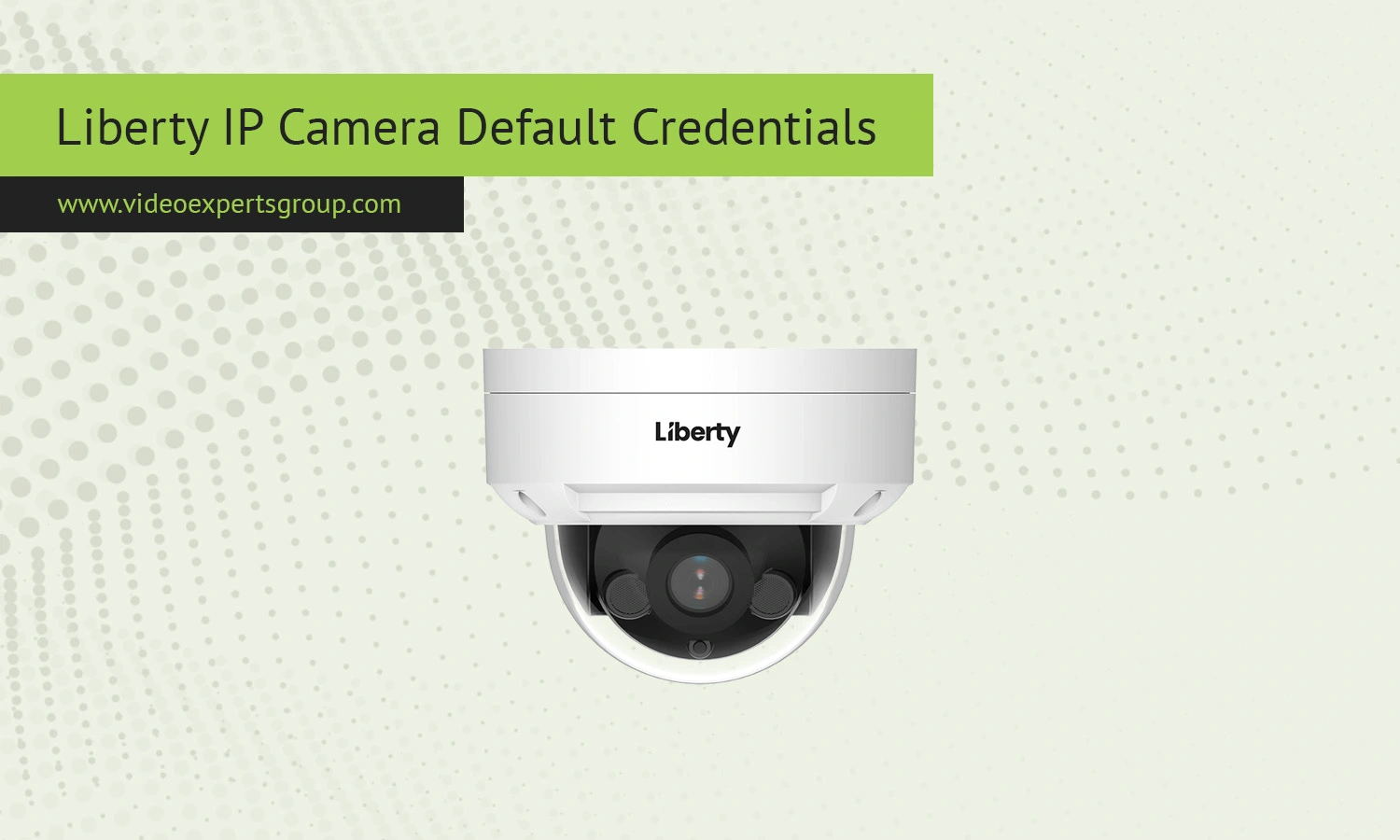
Liberty IP cameras are widely used for home and small business surveillance thanks to their simple setup and affordable price. Like most network cameras, they ship with factory default credentials that allow quick access during the initial configuration. While this makes installation easier, it also creates a potential security risk if the default login details are not changed. Understanding the default IP address, username, password, and port settings is essential for both setup and long term protection of your device.
Many users encounter issues when trying to access their camera interface for the first time. In most cases, the problem is related to incorrect default credentials or network settings. This guide explains the standard factory settings used by Liberty IP cameras and answers common questions people ask online.
Default IP
The default IP address for most Liberty IP cameras is: 192.168.1.108.
This address allows you to access the camera through a web browser when connected to the same local network. If the camera does not respond, it may have received a different IP address from your router via DHCP. In that case, checking your router’s connected devices list can help locate it.
Default Username
The factory default username is typically: admin.
This is the most common administrative login used across many IP camera brands. It provides full access to settings, video streams, and system configuration.
Default Password
The default password for Liberty IP cameras is usually one of the following:
admin12345- blank (no password)
In some models, the password field is left empty during the first login. If none of these options work, the device may have been preconfigured by the seller or previously used.
Default Port
Liberty IP cameras commonly use the following ports:
Port 80 is used for accessing the web interface, while port 554 is used for streaming video via compatible software or mobile apps. If remote access is required, these ports may need to be forwarded in your router settings.

Connect Liberty cameras to VXG Cloud VMS with GenAI for free
Learn moreFAQs
