Wisenet Device Manager: Overview, Features, Troubleshooting
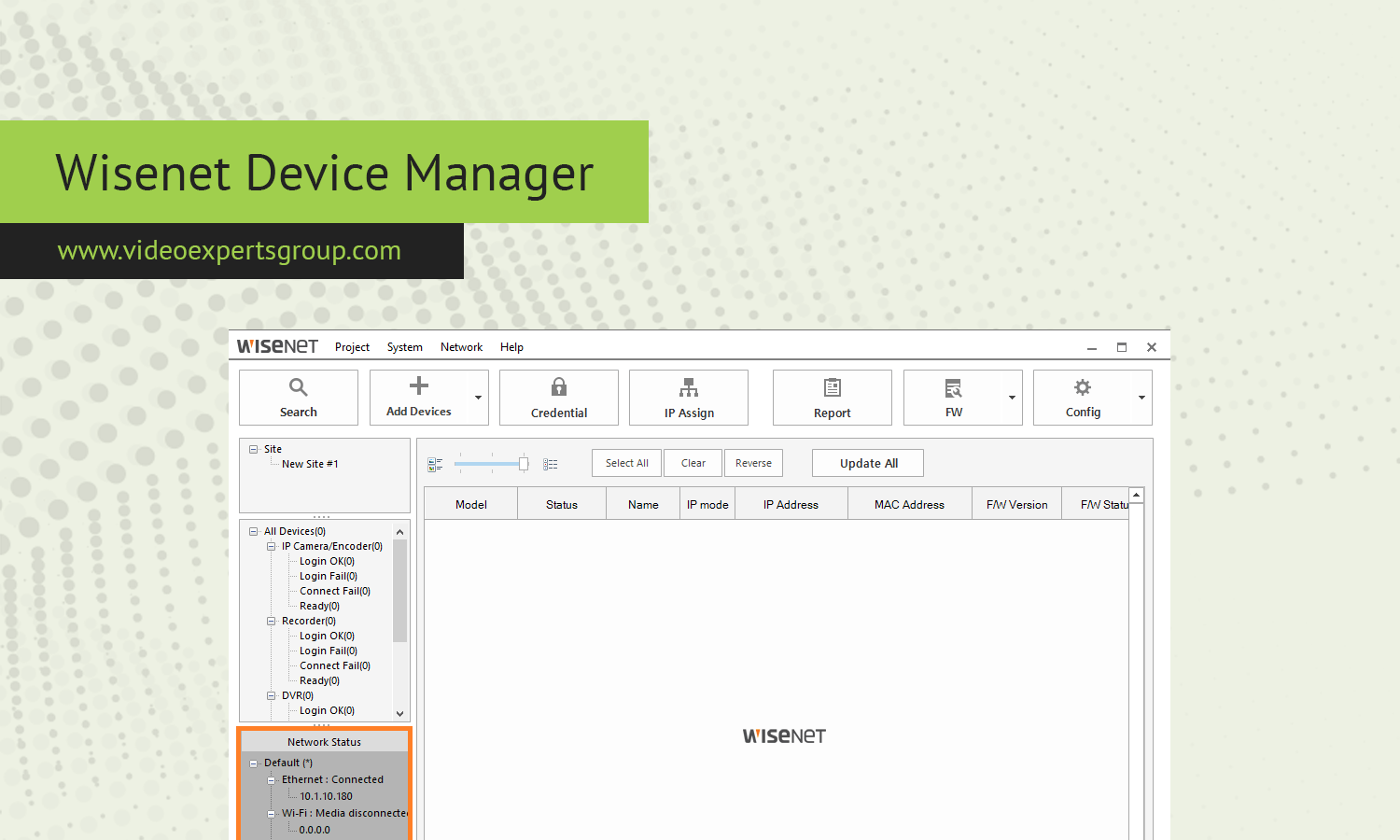
Modern IP camera surveillance systems usually require management well before a camera ever hits a Video Management System. In the initial phase, an installer often has to find devices on the LAN, assign them IP addresses, set up credentials, update them, time them to the server, and make sure the camera can talk to the rest of the surveillance gear. Wisenet Device Manager From Hanwha Vision’s side, that is the niche that Wisenet Device Manager fills.
It is a Windows utility to find (or “discover”) supported devices on a LAN and manage a group of them simultaneously through various functions like discovery, adding to a new system, taking out of a system, updating, and others.
The latest on-premise documentation says that the Device Manager prepares devices for “various software,” including cloud service. But Hanwha’s most recent product documentation distinguishes it clearly from an actual video management system (VMS). Wisenet Device Manager does not provide features like a video wall or continuous recording. It is not a VMS but is rather something an installer can use to ready Hanwha-tagged hardware for such systems.
It gives admins multiple tools for managing devices on premise in a coordinated manner before they even see light of day within a system in the same way your average NVR or server viewing client system sees them.
About Wisenet Device Manager
Wisenet Device Manager is a desktop tool developed by Hanwha Vision allowing users to discover and control compatible Wisenet devices in a local network environment. In a practical sense, the function of Device Manager is that of a provisioning and maintenance console. Instead of logging into the web interface of each camera in sequence, the administrator can scan devices in the network and manage multiple devices within a single application window.
Hanwha's documentation has displayed Device Manager as supporting cameras management functions such as discovering cameras, adding credentials, setting IP addresses, updating firmware, syncing time and date parameters, and Open Platform application management.
This application is particularly useful in the installation process. A new camera may have a DHCP assigned address, a default password, incorrect time zone and/or NTP configuration. Manually performing these actions on every camera one by one would becomes extremely time-consuming with an increasing number of cameras.
Device Manager also plays a part in the long-term maintenance of existing systems. Hanwha's current support documentation states that some older camera models are unable to function properly without old browser plug-in technology which is incompatible with current browser standards. In such situations, Device Manager can be used to upgrade firmware and important camera settings without the exclusive use of the old web interface.
Key Features
Network camera discovery
One of the initial setup problems installers encounter is finding their cameras. Device Manager is able to probe the local network and list discovered devices that the administrator can then use to locate cameras without trying every possible IP address.
Finding cameras is most helpful on initial setup, but is applicable at other times. A properly connected camera might be live, but the installer doesn't know its IP address. Being able to find it using this tool before other configuration needs is helpful.
The discovery function is different from remote discovery. The machine that runs Device Manager normally needs to be on the network that the cameras are on. A camera located behind a second router, a separate VLAN, a VPN boundary or a firewall will not be listed here even if the camera is powered and working correctly.
IP address configuration
You can set IP information on compatible cameras via the Device Manager, which is handy when a cameras require a more static or predictable IP address that allows another systems like your VMS, NVR, access control system integration, analytic system and others that may expect a known address. In systems that implement DHCP for camera cameras, it is a common practice at larger sites to reserve IPs for devices if steady addresses need to be used. This is to keep the known address of the camera from being changed to something else that could then cause problems for your other systems once there is a change in IP address for the camera.
Credential management
It can be used to authenticate with a camera and to set admin configurations. Hanwha's documentation is describing how to select a device, how to enter the administrator's password, and how to check if the authentication was successful.
It's important to cover password handling in detail. There is no single, universal password that should be taken as the current default for each generation of Wisenet devices.
There can be different behaviors for older devices and legacy Samsung/Wisenet devices compared to new cameras. It's a recurring issue in community reports where users face legacy systems whose credentials are changed by previous installler/owner.
For new installations, perform the password configuration relevant for the particular camera model and firmware version instead of using passwords from a stale forum posting.
Firmware updates
One of the most essential maintenance tasks in managing IP devices is firmware management. With Device Manager, administrators don’t need to access each camera individually through the web interface to update its firmware.
Hanwha's current support recommendations suggest using firmware updates prior to setting up a device for cloud connectivity and other integrations.
Firmware management can be thought of a directed maintenance operation. Before you upgrade production cameras, ensure the current model, the currently installed firmware version, the designated firmware package file, any incompatibilities to take into consideration, and what the result will be configuration-wise is verified. Never just assume the current latest available package for one Wisenet model will be compatible and suitable for the very similar type of equipment in the same product family.
Date, time, and NTP configuration
The ramifications of getting the camera time wrong aren't immediately obvious. The footage captured will either be recorded under the incorrect time-stamps, making correlation events that have been hard to piece together in the first place, either with analytics from multiple sources that won't add up to the same thing. Hanwha advises on pre-configuration on the devices when connecting it to the cloud service in terms to setup correct time zone and synchronize using NTP server.
It is important to have consistent source of time when dealing with the multi-camera environment.
If cameras, NVR, VMS Servers, gateways, analytics servers have disparate clock on devices then correlation during incident will be more time-consuming.
Open Platform management
Certain Hanwha cameras are capable of running applications on the Wisenet Open Platform. Device Manager can also be used for installing and starting applications that are supported by camera models.
This feature is useful in the case of edge video analytics. Instead of pushing the video stream to a central server, some analytic functions can take place on or near the camera itself. The outcome such as metadata or events can be fed into a VMS or a cloud platform.
While this arrangement can reduce bandwidth, processing requirements are lowered, but the extent is varied based on algorithm and camera hardware, frame rate, resolution and even rate of detected events.
The newest of Hanwha cameras also expose more and more AI capabilities. In Wisenet 9, there are some cameras which possess capabilities like AI-powered image processing along with intelligent video analysis.
Bulk configuration
The true power of Device Manager can be tapped when the same camera configurations must be made to numerous devices. No more logging into 20 cameras through web interfaces and executing the exact same sequence of commands. The administrator can choose all (or some) of the devices and apply the common, supported, settings. Documentation in Hanwha explain the bulk setup workflows-ranging from updates firmware to device credentials to IP address, date/time and even CloudConnector setup.
This will save an admin from the potential chaos of creating incompatible settings from device to device where each cameras should be syncing with the same NTP server, using same network setting, etc.
System Requirements
The current Hanwha Device Manager documentation details support for Microsoft Windows 7, Windows 10, and Windows 11 64 bit. Supported requirements include the Microsoft . NET Framework 4.7.2 Client Profile and Microsoft Visual C++ 2010 Redistributable Package x86 (which is included within the Device Manager package).
Supported hardware requirements also state an Intel Core i5 8th generation or higher processor, a minimum 8 GB DDR4 RAM, a video graphics card, and a minimum screen resolution of 1366 768.
Windows scale options are not supported on these documented requirements. Hanwha states support for HTTP (port 80), HTTPS (port 443), and RTSP (port 554) ports. Device discovery, IP configuration, and first password attempts are routed over UDP ports 7701, and 7711. This information will be critical when using Windows Firewall, endpoint security software, VLAN segments or controlled networks.
It can become confusing to hear that a camera works properly in the browser, but can’t be found by device manager, yet the HTTP port isn’t blocked.
Download Wisenet Device Manager
Download Device Manager from Hanwha Vision's official support resources and use a version appropriate for your camera generation and deployment. Avoid downloading installers from unofficial file repositories because device-management software has access to sensitive network infrastructure.
The exact download location and package can change as Hanwha updates its support portal. The safest workflow is to start from the camera or product support page and select the applicable software or utility package.
Firmware should be treated the same way. Verify the camera model and firmware compatibility before applying an update. Hanwha's current product support pages provide firmware, manuals, quick guides, and other technical documentation for individual models.
Setup and Login
1. Install Device Manager
Install the application on a Windows computer that has network access to the cameras. If the workstation uses strict endpoint security, check whether the security software blocks local discovery or UDP communication.
2. Connect the workstation to the camera network
For initial discovery, place the workstation on the same LAN or VLAN as the cameras, or ensure that the network infrastructure explicitly permits the required discovery traffic.
Do not start troubleshooting passwords before checking network reachability. If the application cannot communicate with the device, correct credentials will not solve the problem.
3. Scan for devices
Open Device Manager and run a network scan. Review the discovered devices and identify the camera by model, IP address, MAC address, or other available information.
If the camera does not appear, move to the troubleshooting section below instead of repeatedly rescanning without changing anything.
4. Authenticate the camera
Select the camera and use the credential function to provide the administrator credentials. Hanwha's documentation states that the administrator password is required for direct configuration of registered devices through Device Manager.
There is an important distinction between an old factory-default credential and the password currently stored on a camera. If the camera has already been configured, Device Manager needs the current administrative credentials.
5. Do not assume one default password
The question "What is the Wisenet Device Manager default password?" has no universal answer that is safe to apply across every Wisenet generation.
Some older Samsung and Wisenet devices used factory credentials such as admin and 4321. Community reports confirm that this credential appears on older equipment, but they also show that it does not work across newer devices or cameras whose credentials were changed during installation.
For a current camera, follow the model-specific initialization process. Newer camera installations may require the administrator password to be created during initial setup rather than relying on a permanent factory password.
If you inherited a camera system and do not know the credentials, identify the exact model and contact the manufacturer or authorized service provider for the appropriate reset procedure. Do not attempt to guess passwords repeatedly.
Troubleshooting
Wisenet Device Manager does not find any cameras
This is perhaps one of the most frequently occurring issues with network device management utilities, just because a camera is powered up doesn't ensure the discovery protocol can talk to it, at all.
Begin with the basic network itself. Verify the camera has power and the Ethernet link on is active, with the switch reporting expected port online.
Proceed to verify the camera have an ip address – inspect the router or DHCP server, switch management and another network management utility- to confirm device presence.
If you do have the camera's ip address, then try to address it directly from a workstation. If the web browser does provide access but the Device Manager fails, then the fault will likely fall upon discovery traffic, VLAN segmentation, firewall rules or application permissions, not just a basic network connection.
Hanwha explicitly details UDP ports 7701 and 7711 for discovery, ip configuration and initial password actions. If a firewall allows general HTTP access and denies these UDP ports, then it is conceivable to see varying access behavior between browser and Device Manager.
- Confirm the workstation and camera are on the expected network.
- Check whether VLAN isolation prevents device discovery.
- Temporarily test Windows Firewall rules in accordance with your organization's security policy.
- Check endpoint security software for blocked Device Manager traffic.
- Confirm that the camera has an IP address.
- Check whether another device is using the same IP address.
- Verify that the camera model is supported by the installed Device Manager version.
- Update the camera firmware if the model documentation recommends it.
The camera appears but Device Manager cannot connect
If a camera shows up in the list but authentication fail, concentrate on the credentials and services offered by the camera. Try confirming the username and password with the camera Web interface separately, opening the camera page in the camera Web browser as indicated in figure above. If it doesn’t work there then definitely Device Manager is not at fault.
If Web page is correct but the Device Manager shows failure to the authentication try to make sure HTTP/HTTPS Service needed for camera connection are accessible on the cameras port and also check the possibility of interaction between any Security software (Firewall/Antivirus) and Device Manager.
Ensure duplicate IPs in network don’t contribute to the anomaly as one request will reach the intended IP and another request will result in authentication fail with a different device.
Device Manager finds the camera but the IP address cannot be changed
Check that the camera is already authenticated. Administrative configuration requires the proper device authentication credentials.
Check that the address that is requested for the camera's subnet is actually within the camera's subnet and doesn't overlap with other devices. If DHCP is in use on the network, decide if the address should instead be reserved by the DHCP server.
If a corporate installation, also check that the switch port that the camera is connected to is on the proper VLAN. An address that is in the wrong subnet will only make the camera appear sporadically accessible and could still hinder communication with the VMS.
Firmware update fails
The first step is to find out the exact camera model number, and the exact firmware package you have. A Firmware package from a similar model is not an option.
Look at network stability and other resources on the device. Do not be attempting to install to a whole mass of camera over an unstable network connection.
After a Failed Firmware install do not restart the attempt multiple times without checking the Firmware of the cameras first and also note the Camera model, Camera serial number, Camera model number of firmware installed, the Error that has occurred, and the Version number of Device Manager and then attempt to escalate.
Older camera works but its web interface does not
It is important to note that some of the older Wisenet cameras could pose a unique compatibility issue. This occurs where the web interface of older cameras relies upon browser technologies no longer supported by modern browsers.
Hanwha's recommended fix here is to firmware upgrade where this is available. Their documentation currently lists using the Internet Explorer mode of Microsoft Edge for some of the older cameras which still require legacy browser components. It is with firmware upgrades and a number of camera configuration tasks that Device Manager proves useful.
Camera works in the VMS but does not appear in Device Manager
This scenario can arise as a VMS and Device Manager do not necessarily have to communicate using the same method of connection.
A VMS may connect to the camera via a known IP address and RTSP stream, whereas Device Manager relies on local discovery. Thus, the camera can function normally as a streaming video device but fail to be identified by a discovery scan.
Try examining the local network path and the UDP discovery traffic rather than concluding that the camera hardware has failed.
A Practical Installation Workflow
A reliable deployment can follow a simple sequence.
- Connect the cameras to the intended network.
- Verify PoE, link status, and power.
- Identify the camera IP addresses.
- Run Wisenet Device Manager discovery.
- Authenticate the devices.
- Update firmware where appropriate.
- Configure stable IP addressing or DHCP reservations.
- Configure time zone and NTP.
- Apply required camera settings.
- Install supported edge applications where needed.
- Add the cameras to the VMS or cloud platform.
- Verify live video.
- Verify recording and playback.
- Verify events and analytics.
- Document camera credentials, IP addresses, firmware versions, and physical locations according to your organization's security policy.
This workflow separates device provisioning from application integration. When something fails, you can identify the layer responsible instead of treating the entire surveillance system as one problem.
When Wisenet Device Manager Is the Right Tool
Device Manager is a strong fit when you need to prepare or maintain Hanwha cameras on a local network.
- Initial camera discovery
- Bulk camera configuration
- IP address management
- Credential configuration
- Firmware maintenance
- NTP and time-zone configuration
- Open Platform application management
- Preparation of cameras for cloud services
- Maintenance of older camera deployments
It is less appropriate when your primary requirement is centralized video recording, remote monitoring, long-term cloud retention, multi-tenant video management, or advanced AI investigation. Those functions belong in a VMS or specialized video platform.
FAQs
