ONVIF Compatible Cameras
Connect ONVIF compatible cameras directly to the cloud without complex setup or hardware limits.
Become a Partner

ONVIF Camera List
VXG works with any standard IP camera
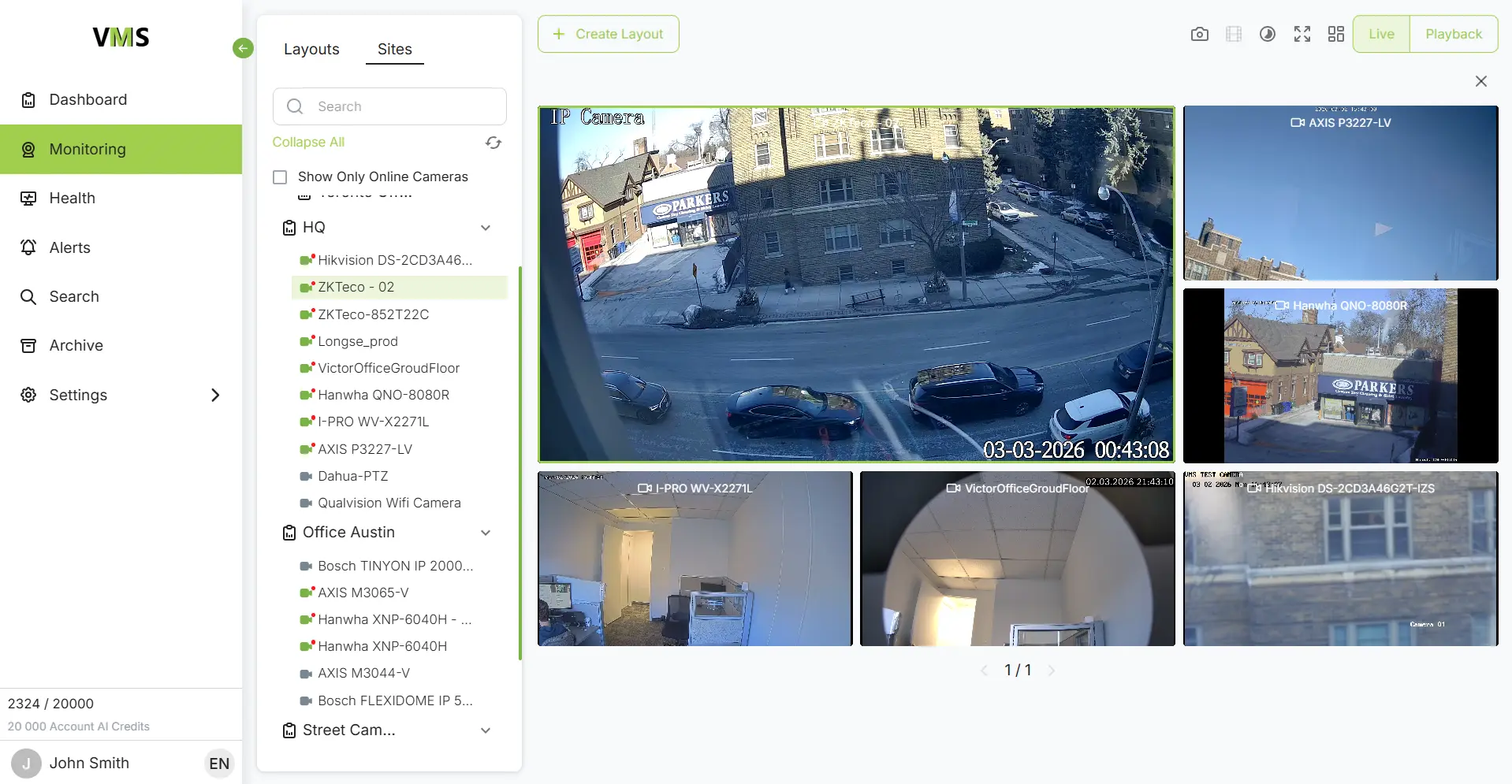
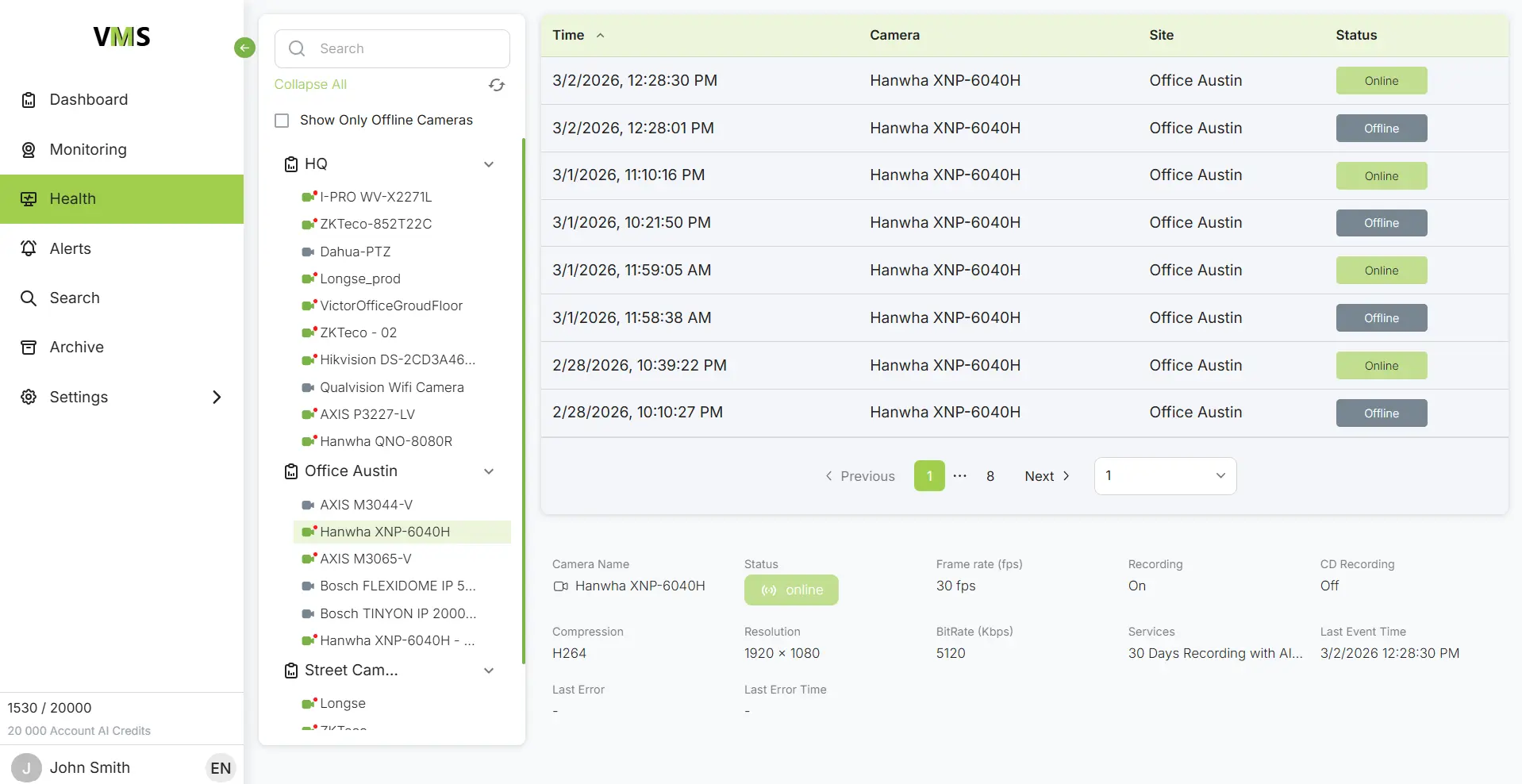
VXG supports ONVIF and H.264 / H.265 video. Camera brands tested with VXG include AXIS, Hanwha, Hikvision, Dahua, Vivotek, Bosch, Panasonic, Sony, Uniview, Mobotix, Milesight, Longse and Truen.
Cameras can be connected directly using IP address and port (port forwarding), via VPN, or using a Gateway/NVR to bridge the connection. Cameras also support ONVIF Uplink (not ONVIF profile or add-on conformant). Uplink can be part of a camera firmware, an app/plug-in that can be installed on a camera, or software running on an on-prem device such as a router.
Supported cameras
VXG is integrated with major IP cameras brands including AXIS, Hikvision, Dahua, Vivotek, Hanwha, UNV, Bosch, Longse, i-PRO and Grandstream making a plug-&-play connection of these cameras directly to cloud storage and cloud analytics. Please note that due to a large variety of models and firmware versions, VXG doesn't automatically test each new camera model or firmware update, until requested by a customer.




Uplink plugin




Camera firmware

Uplink firmware